
 To Next Page
S
sarah98Sep 3, 2025
Why can't I open the DVD menu on my ESX VN630W?
- WWilliam MooreSep 3, 2025
If the DVD menu cannot be opened on your ESX Car Receiver, the disc might not support menus or is a plagiarism. Insert another disc.

Why can't I open the DVD menu on my ESX VN630W?
If the DVD menu cannot be opened on your ESX Car Receiver, the disc might not support menus or is a plagiarism. Insert another disc.
Why won't the navigation app start on my ESX VN630W Car Receiver?
If the ESX Car Receiver navigation application will not start, the software may not be compatible with the device, may not have been installed correctly, or the license may have expired. Check the compatibility of the software with Windows CE 6, or get a compatible version. If compatible, check the settings under Apps - Options - System and correct the navigation software path if necessary. If the license has expired, contact the software supplier.
What to do if my ESX VN630W doesn't recognize USB or microSD card?
If your USB drive or microSD card is not recognized by the ESX Car Receiver, it might be due to an incorrect storage or data format. Format the storage with the MS-DOS file system (FAT32).
Why can't my ESX VN630W find my location?
If the ESX Car Receiver isn't able to find your current location or the route guidance is disturbed, the GPS antenna might not be connected correctly, or you may be in an area with a weak GPS signal. Check the GPS antenna connection, and replace it if defective. If the connection is fine, continue driving until the GPS signal is available again.
How to resolve distorted sound on ESX VN630W Car Receiver?
If the sound from your ESX Car Receiver is distorted, overdriven, or has strong noises, the equalizer settings or volume settings of each application might be unfavorable. Check the audio settings under Apps - Audio or Advanced, and correct the settings to improve the sound quality.
Why won't my ESX VN630W Car Receiver turn on?
If your ESX Car Receiver cannot be turned on (VN630D model only), it might be due to operator error or a defective fuse. To turn on the device with the ignition off, press and hold the power button for about 2 seconds. The device will automatically switch off after 30 minutes. If that doesn't work, replace the blown fuse with a new one of the same type and value.
How to fix inaccurate touchscreen input on ESX VN630W Car Receiver?
If the touchscreen function of your ESX Car Receiver is inaccurate or delayed, it could be due to improper calibration or the device processing a task. First, calibrate the touchscreen by going to Apps - Options - System. If the problem continues, wait until the current process is completed.
What to do if the screen is black on my ESX VN630W?
If your ESX Car Receiver screen is black, try tapping the screen to see if the display is disabled. If that doesn't work, press the left knob on the device to exit standby mode.
Lists key features and specifications of the device.
Identifies and explains the controls and buttons on the VN630W unit.
Identifies and explains the controls and buttons on the VN630D unit.
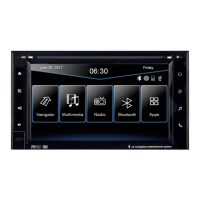
Explains the main menu interface and its functions.
Details how to open and use the navigation software.
Explains how to operate the multimedia playback functions.
Describes how to play music files from folders.
Explains the repeat playback options.
Explains the random playback feature.
Details how to play movie files.
Details how to operate the radio functions and presets.
Explains radio settings and how to manage station presets.
Explains the RDS (Radio Data System) features like AF, TA, PTY.
Explains how to operate the DVD and CD playback.
Overview of available applications on the device.
Explains how to pair, connect, and disconnect Bluetooth devices.
Details synchronization and management of contacts and call logs.
Explains how to use the on-screen keypad for dialing.
Describes how to connect and use iPod/iPhone devices.
Explains how to use audio/video inputs and TV function.
Details how to stream audio via Bluetooth using A2DP.
Explains how to adjust audio settings like Bass, Treble, and EQ.
Details how to select and adjust equalizer presets.
Explains advanced audio adjustments like pre-volume and MISC settings.
Covers miscellaneous advanced audio settings like Loudness and Subwoofer.
Explains how to manage and open files using the file manager.
Describes how to convert audio CDs to MP3 format.
Explains how to play ripped CD content from virtual disk.
Details how to connect and use Android devices with E-Link.
Explains how to use the quick charging function for mobile devices.
Covers language and skin settings for customization.
Explains how to set the date, time, and time zone.
Details display settings like brightness and camera input.
Explains how to adjust the brightness and color of key illumination.
Details how to activate and use voice control features.
Explains how to adjust the voice output volume.
Provides information on voice commands and help.
Shows system information and update procedures.
Explains how to recalibrate the touchscreen for accuracy.
Describes how to customize the main menu and app layout.
Explains how to set custom background images.
Details how to customize the startup logo.
Explains the functions of the infrared remote control.
Describes how to teach and use steering wheel remote controls.
Explains the function of the rear view camera.
Details media playback limitations while driving.
Provides solutions for issues related to the device not turning on.
Offers fixes for touchscreen inaccuracies or black screen issues.
Addresses problems with no sound or distorted audio output.
Troubleshoots issues with CD/DVD menu opening and playback.
Fixes for non-working connected devices like iPod or TV tuners.
Provides solutions for USB/microSD card recognition problems.
Solves issues with the navigation application not starting or guiding.
Addresses problems with radio station search and reception.
Troubleshoots connection and sound issues with E-Link.
Fixes connection, pairing, and audio issues with Bluetooth phones.
Solves problems with the transmission from front or rear cameras.
Addresses issues with display or sensor functionality.
Troubleshoots operation of the steering wheel controls.
Details the process of installing the device in the dashboard.
Details pin assignments for the ISO system connector.
Details pin assignments for the open cable system connector.
Explains the connections for audio, video, and AV inputs.
Details connections for audio outputs and remote turn-on.
Explains various system connection types.
Details connections for front and rear cameras.
Explains connections for audio and video outputs.
Details the connection of the handbrake signal for safety.
Provides guidelines for device care and maintenance.
Outlines the warranty terms and conditions.
Contains legal disclaimers, technical changes, and contact info.
Provides contact details for customer support and service.
 General
| Traffic Message Channel (TMC) | Yes |
|---|---|
| DIN size | 2 DIN |
| Output power | - W |
| RDS features | TMC |
| Product color | Black |
| Built-in camera | No |
| Processor model | Cortex-A9 |
| Processor frequency | 800 MHz |
| Disc types supported | CD, CD-R, CD-RW, DVD, DVD-R, DVD-RW |
| Audio output channels | - channels |
| Audio formats supported | FLAC, MP3, WMA, WMV |
| Video formats supported | AVI, DIVX, MPEG1, MPEG2, MPEG4, WMV |
| Equalizer bands quantity | 10 |
| Maximum power per channel | 50 W |
| Operating system installed | Windows CE 6.0 |
| Display diagonal | 6.2 \ |
| Display resolution | 800 x 480 pixels |
| RAM capacity | 256 MB |
| Storage media type | Flash |
| Compatible memory cards | MicroSD (TransFlash) |
| Video in | 3 |
| Bluetooth functions | Audiostreaming, Handsfree calling |
| Supported radio bands | AM, FM |
| Video out | 2 |
| RMS rated power | 200 W |
| Maximum video resolution | 1920 x 1080 pixels |
| Form factor | Fixed |
| Power source type | DC |