26 www.eta.co.at
Getting to know the control system ETAtouch controller
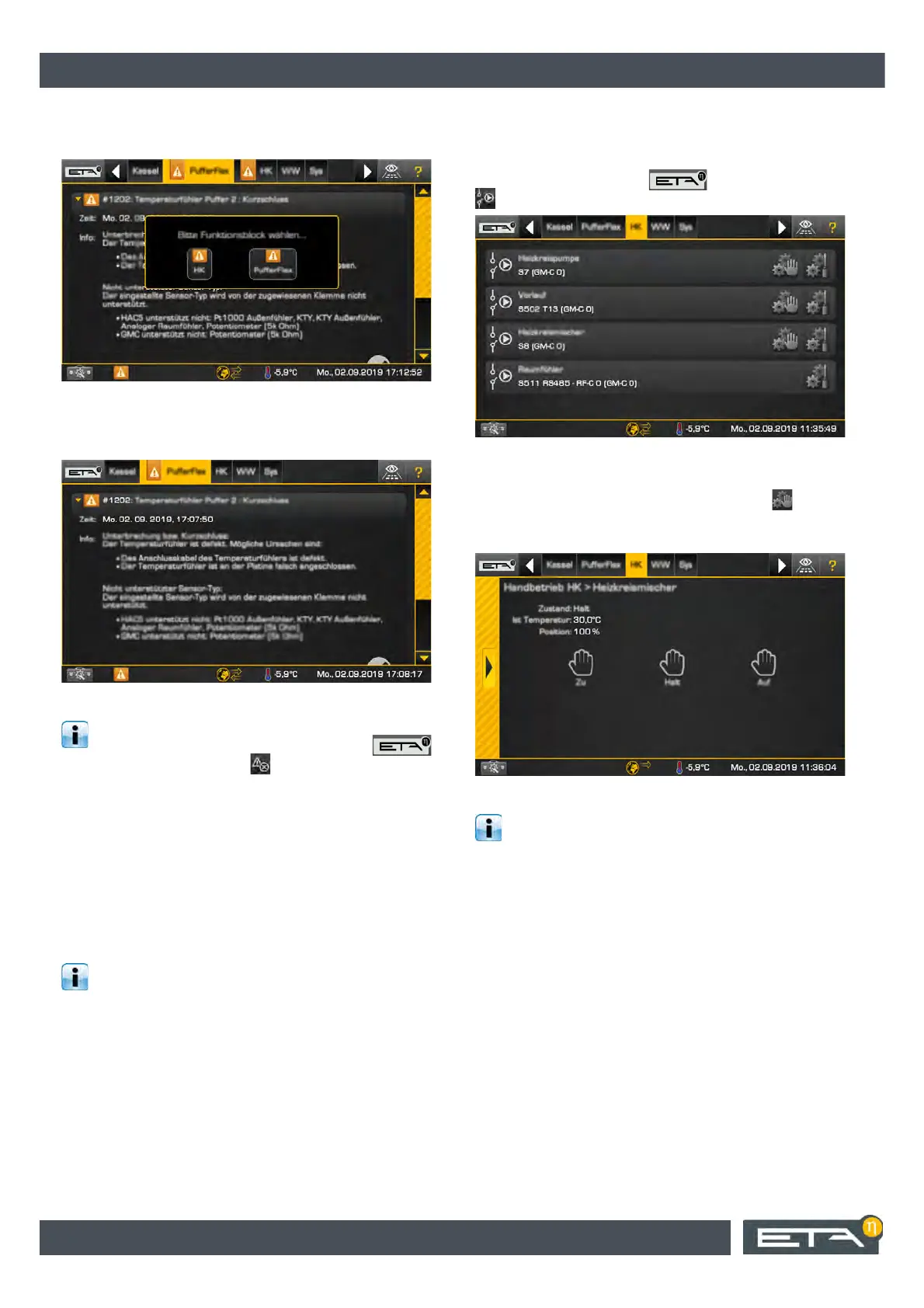
If there are several errors, a list appears when you tap
on the error symbol at the bottom of the screen.
Fig. 7-10: Error list
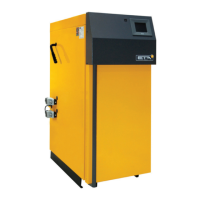
Tap on the error icon at the bottom of the screen to
display the error description.
Fig. 7-11: Error description
You can also switch to the messages menu to
display errors. To do this, tap on the
symbol and then select the menu.
7.1.5 Inputs and outputs
Displaying the terminal assignment of individual
components
The terminal assignment of the individual components
of the selected function block is displayed in the inputs
and outputs menu, such as: pumps, temperature
sensors, mixers.
The terminal assignment can be changed with
the [Service] authorisation. Manual operation of a
pump or mixer, for example, is also possible.
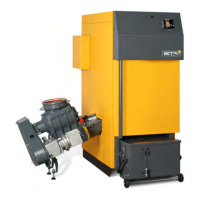
Below is an example of the function block of the
heating circuit. To view the terminal assignment, first
select the heating circuit. To open the inputs and
outputs menu, tap on the symbol and then on
. An overview screen opens.
Fig. 7-12: Overview
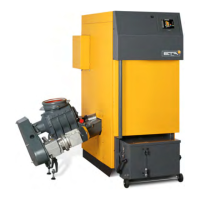
Details of a component, such as the current position or
the operating state, are displayed when the symbol
is tapped. Try this with the heating circuit mixing valve.
A settings window appears.
Fig. 7-13: Settings window
With the [Service] authorisation, the heating
circuit mixing valve can be started up manually
from the settings window with the [Open], [Stop] and
[Closed] buttons. However, this is primarily intended
for specialists.
Close the window using the arrow on the left side.


 To Next Page