ETAtouch controller Getting to know the control system
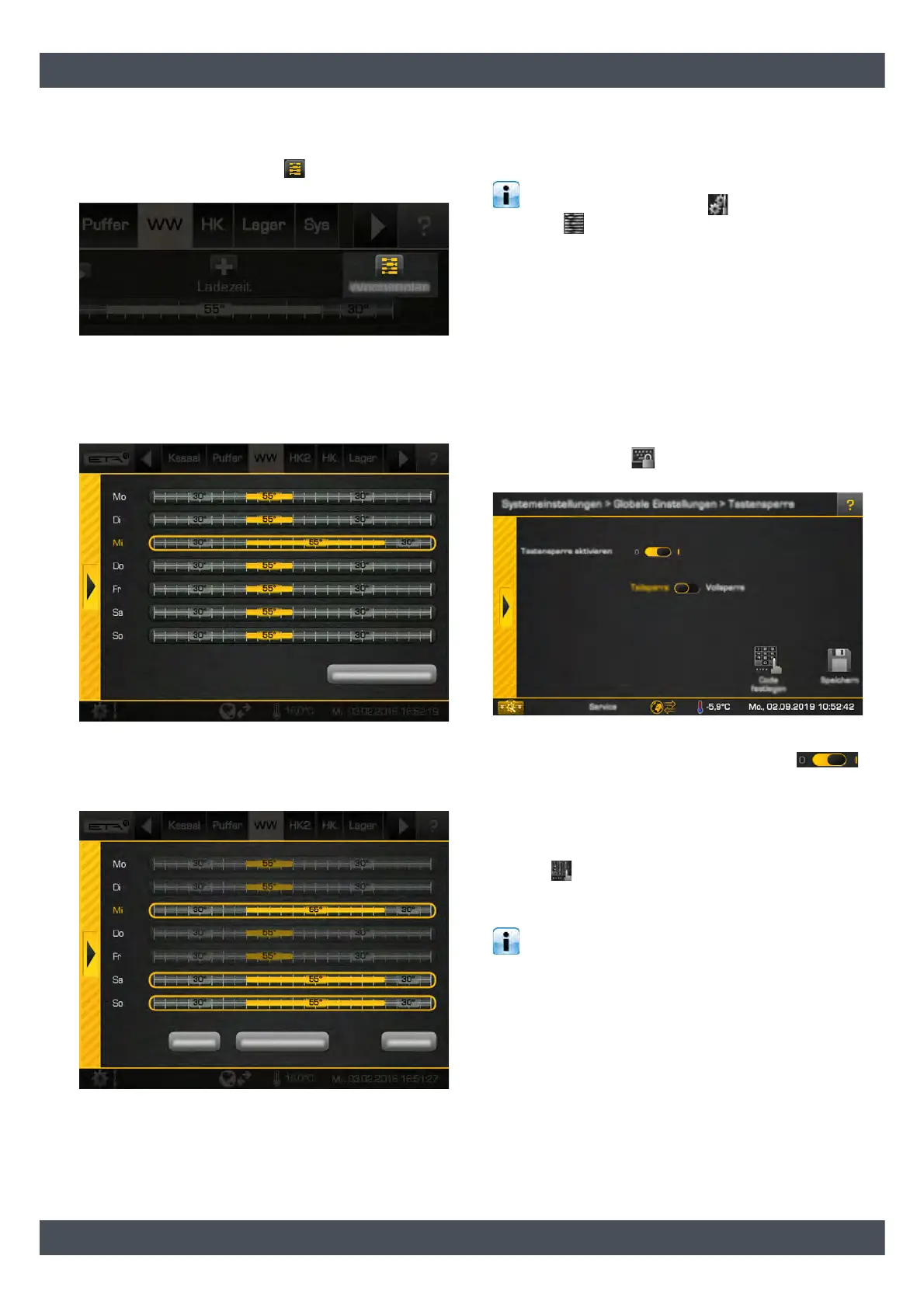
Time windows from Wednesday copied to
Saturday and Sunday.
1. In the overview, press the [Weekly plan] button
to switch to view all days of the week.
Fig. 7-28: Copying time windows to days of the week
2. This opens an overview of time windows for all
days of the week. First, choose the day of the week
to copy (this is framed) and then press the [Copy
selected day] button.
Fig. 7-29: Overview
3. Now, select the days of the week for which the time
window is to be copied. In this example Saturday
and Sunday.
Fig. 7-30: Select days of the week
Pressing the [Mark all days] button marks all days.
4. Press the [Save] button to save. The overview will
be updated accordingly. Close the window using
the arrow on the left side.
You can also access the week overview via the
function block settings ( button). For this,
press the [Charging times Weekly plan] button in
the settings.
7.1.6.7 Key lock for the control system
Function of key lock
The "Key lock" function protects the settings in the
control system against accidental changes by, for
example, children or unauthorised persons.
To activate the key lock, first the authorisation must be
increased to [Service] in the system settings. Then
switch to the system settings in the [Global Settings]
menu and press the [Key lock] button. An overview
screen opens.
Fig. 7-31: Overview of the key lock
Enable key lock with the on/off switch .
Afterwards you can choose between a partial lock
([Partial lock]) and a complete lock ([Full lock]). In
partial lock, only the basic functions are operable. In
full lock, you can only switch between the function
blocks.
Use the [Code define] button to define the code to
deactivate the key lock (unlock code) and save it. If you
confirm this message, the key lock is activated.
If you forget the unlock code, please contact ETA
customer service. They can deactivate the key
lock again.



 To Next Page