28 Recording Your Looks For Playback
Active: Only zones with an intensity above zero are included.
Selected: Only zones currently selected (surrounded by a green box on the zone map or brightly lit on
the bumps) are included.
All: All zones are included.
Include:
Intensity/ Color: Only the intensity and color mixing zones are included.
Position: Only the position (pan/tilt) zones are included.
Beam: Only the beam zones are included (beam includes non-fadable colors such as wheels and
scrollers).
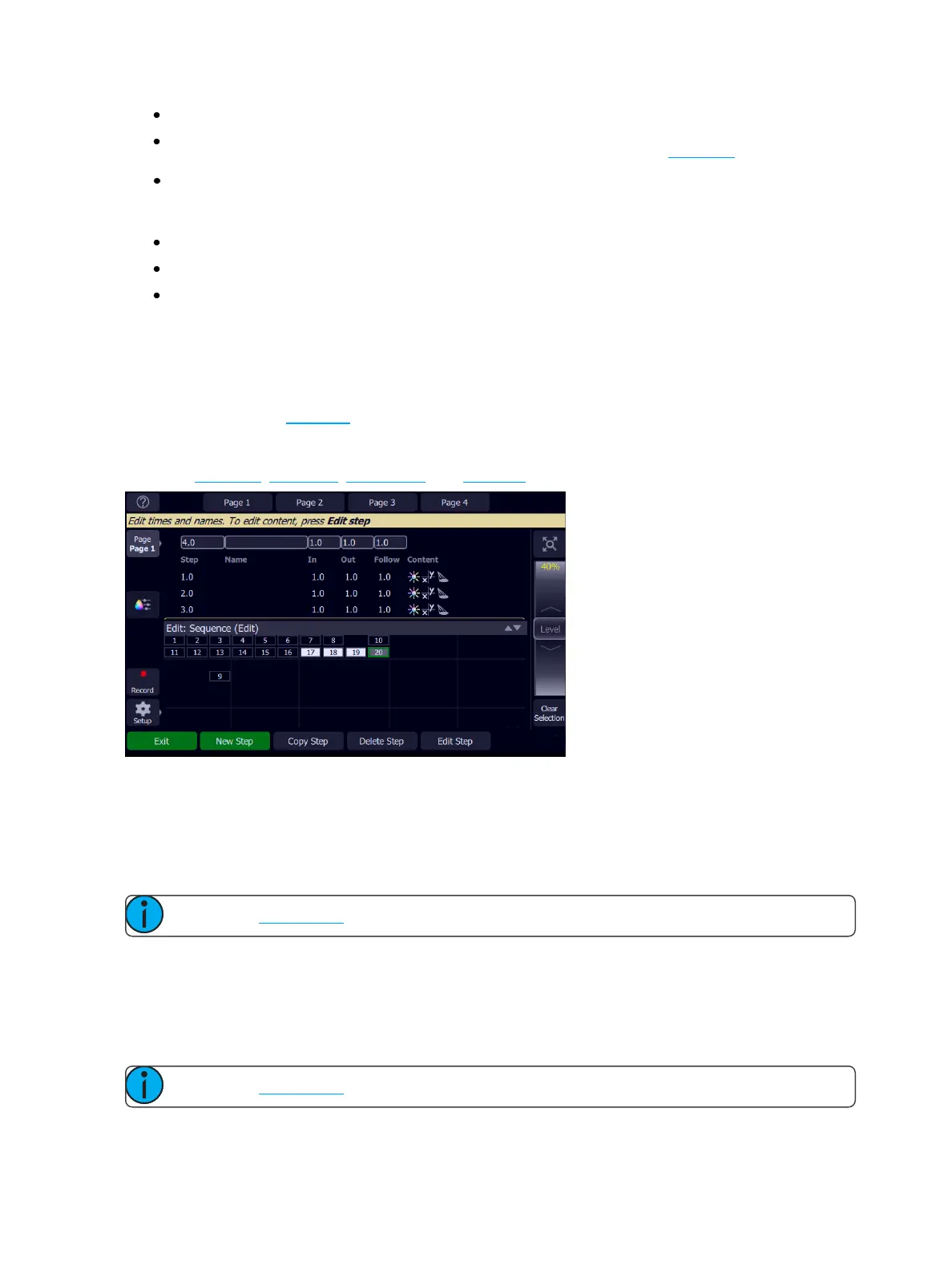
Edit Sequence List
When record is used for an already created sequence, you will enter the Sequence List editor where you can
change the content of a sequence list.
Here you may change the step names and fade times. Using the Edit Step button, you may change the con-
tent of the steps. Pick the step you want to edit in the sequence list in the upper part of the display. You can
also insert new steps, copy steps, delete steps, and edit steps.
Press Exit to leave the editing mode. Any changes made will be stored in the selected sequence.
New Step
Inserts a new sequence step. The new step is added to the next free whole-numbered step at the end of the
sequence list. The new step may then be given another number, including a fractional or 'point' number.
For example, to insert a step between steps 4 and 5, you would enter 4.5.
Note: The sequence list is not re-numbered when a step is inserted.
Copy Step
Copies the selected step and creates a new step. The new step is added to the next free whole-numbered step
at the end of the sequence list. The new step may then be given another number, including a fractional or
'point' number.
For example, to insert a step between steps 4 and 5, you would enter 4.5.
Note: The sequence list is not re-numbered when a step is inserted.



 To Next Page