Recording Your Looks For Playback 29
Delete Step
Deletes the selected step.
The sequence list will not be re-numbered, and the missing step will be skipped the next time the list is played.
Edit Step
Pressing Edit Step will cause only the content in the selected step to be live on-stage. Any presets or manual
zone levels that are not part of the selected step will be suppressed while in Edit Step mode.
Use the normal controls to adjust the contents of the step live. Blind editing is not permitted.
Caution: If the selected step contains a blackout, the stage will go dark.
Pick the step you want to edit in the sequence list in the upper part of the display. You can also insert a new
step, copy step, and delete step.
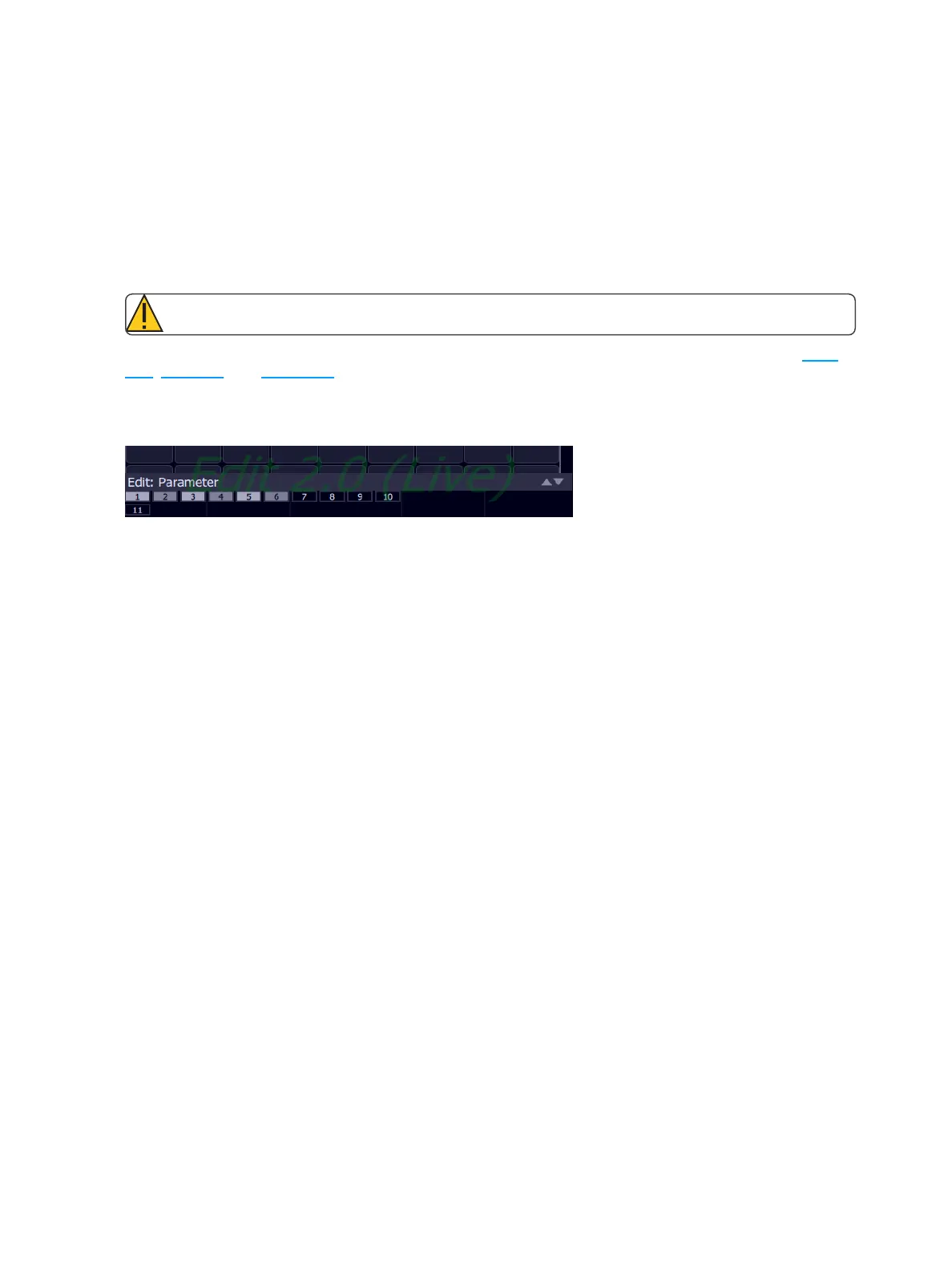
Edit Step is a mode which takes over the screen. While inside the edit step screen, you may visit other screens
to change parameters of the step you are editing. While in those screens, a green watermark will display show-
ing what step you are editing.
Press Store & Exit to save the current look to the selected step and to exit the edit mode, or press Store & Next
to save the current look and remain in the edit mode.



 To Next Page