82 NexLog Recorder User Manual v2.2.0
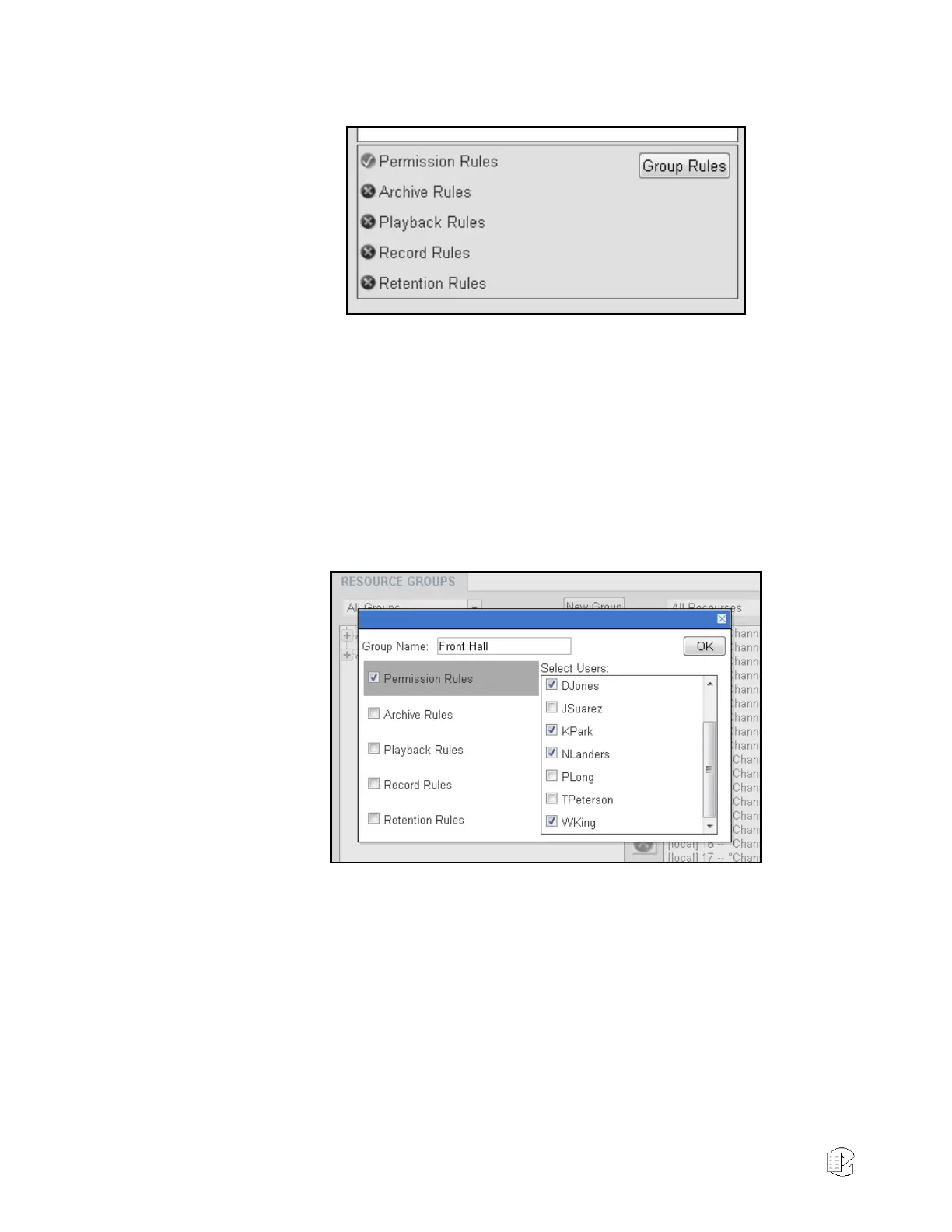
Figure 45—Resource Group Rules Status
Creating Resource Groups
There are three ways to create a new Resource Group. The easiest way is to use
the New Group button at the top of the left column on the Resource Groups
page found in the Configuration Manager under Recording. There also two ways
to create new groups in right-click menus that are detailed as we encounter
them in the discussion below. The New Group button will create a new group
and bring up the Group Edit window for that new group. Here you can name the
group, select which rules apply, and configure each of those rules.
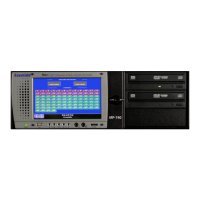
Figure 46—Resource Group Edit: Permission Group View
Here we have a Resource Group named Front Hall, which has an active
Permission Rule, granting users DJones, KPark, NLanders and WKing access to
the channels in this group. A new group created with the New Group button will
have no resources, which can be added in the two column view. Rules can be
disabled by unchecking the checkbox; the rule’s configuration will remain saved
but not take effect while the checkbox is unchecked.


 To Next Page