Space User Guide The Basics
7
saving Presets will be found later in this User Guide. Refer to the Preset Guide for details on
the Factory installed Presets.
Using the Encoder to Select Presets
Presets can be loaded by simply turning the Encoder and stopping at the Preset that you’d
like to use. When the Preset loads, the name of the Algorithm on which the Preset is based is
displayed momentarily.
Using the Encoder to Select Algorithms
You can access ’s 12 Algorithms using the Encoder. Simply press and release the
Encoder. The Algorithm LED will light and the Billboard will display an Algorithm name. Turn
the Encoder to scroll through the 12 Algorithms. When you stop scrolling the displayed
Algorithm will load. After a few seconds of inactivity, the Algorithm LED will turn OFF and
will revert to normal Preset or Play mode.
Unlike Presets, the Algorithms are ‘hard-wired’ and cannot be overwritten or erased. This is
important because it gives you access to all 12 Algorithms even if you have overwritten all of
the Presets. In other words, even if you have programmed all 100 Presets based on Spring,
the other 11 Algorithms are accessible by simply pressing, releasing and turning the Encoder.
Using the Footswitches
The Footswitches can be used in two ways - Play Mode and Preset Mode. In Play Mode, the
Footswitches are used to control certain aspects of the Presets, like Tap Tempo. In Preset
Mode, the Footswitches are used to scroll through and load Presets.
Play and Preset Footswitch Modes
To switch between Play and Preset Modes, press and hold the Right Footswitch for two
seconds. Notice that as you change modes the Billboard display changes. In both modes a lit
LED above the Left Footswitch indicates that the Preset is Active. In Preset Mode, this LED is lit
RED and in Play Mode it is ORANGE. Furthermore, the LED above the center Footswitch is
GREEN (or RED if the HotSwitch is engaged) in Play Mode and OFF in Preset Mode.
In Preset Mode, the Preset Number and the first 10 characters of the Preset Name are
displayed. In Play Mode, the Billboard displays the first 12 characters of the Preset Name.
Each time that you press and hold the Right Footswitch, the unit will change from one Mode
to the other.
Using Play Mode
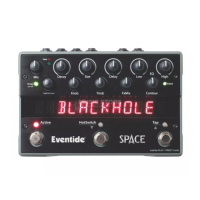
When you’re in Play Mode, the Footswitches are used to control the Preset that’s currently
loaded. The Left Footswitch toggles Bypass/Active. An ORANGE LED located above the Left
Footswitch indicates that the Effect/Preset is Active (not Bypassed). The Middle Footswitch is
the HotSwitch; its action depends on how it has been programmed for the Preset. Use the
Right Footswitch to tap Tempo.


 To Next Page