22
23
1
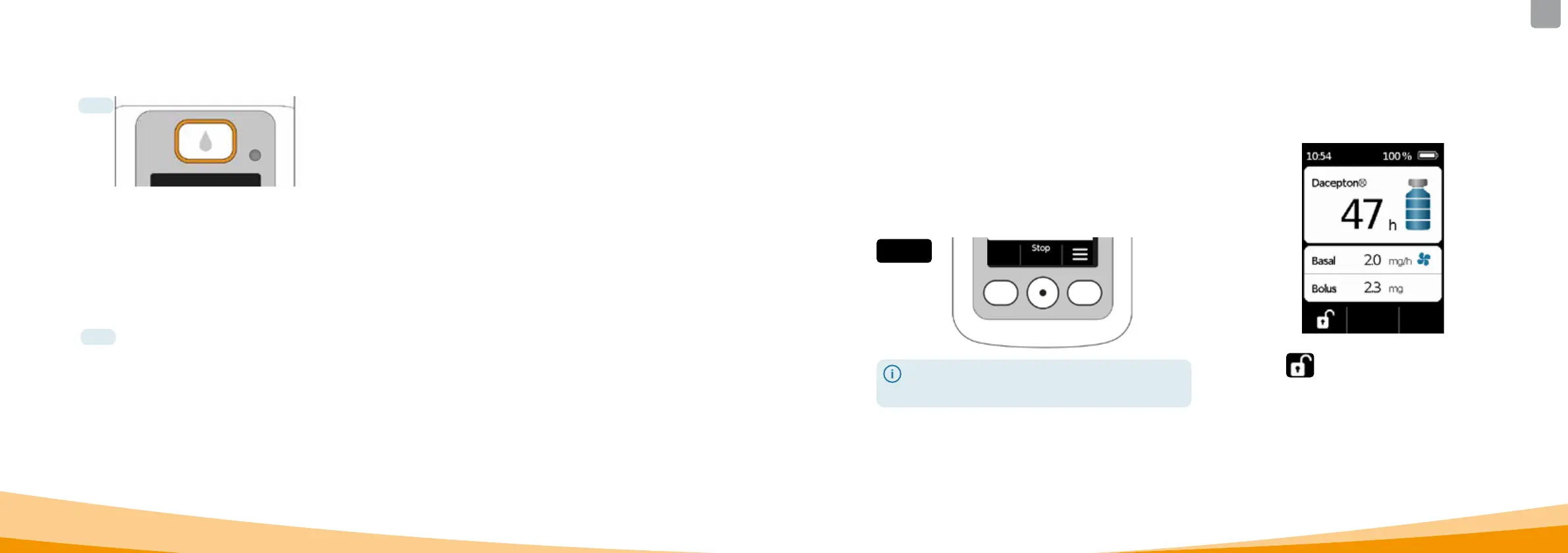
BOLUS BUTTON
The bolus button enables fast delivery of a bolus.
Section
DEVICE ERROR INDICATOR
A signal light is integrated on the front side of your pump. It
will flash red if the internal check of the pump has detected
an error. In such cases, drug delivery is discontinued and
an acoustic signal is emitted.
Section
RELEASING THE RESERVOIR
The reservoir is inserted into the pump and will snap into
place audibly. You can release the reservoir and remove it
by pressing the release button at the right side of the pump.
SCREEN
The pump is equipped with an illuminated colour screen
which provides you with important information concerning
pump status, drug delivery, alarms, etc. The screen will
switch o automatically if you do not operate the device for
longer than 1minute. You can switch the screen on again
anytime by pressing any function button.
The screen of your pump is divided into four sections:
The heading displays general information, such as time
and state of charge of the rechargeable battery. While you
are operating the pump, the device shows you the progress
of that particular function.
The two text sections display the most important information
concerning the operation and control of the pump.
The function button section at the bottom provides a
description of each of the function buttons.
BUTTON LOCK
When the screen is switched o, the function buttons are
also locked. To disable the button lock, proceed as follows:
1. Press any function button. The screen will switch on.
2. Press . The device will unlock all buttons.
VIEWING WINDOW
The fill level of the reservoir can be checked through the
viewing window in the pump housing. A scale on the
reservoir
assists in determining the fill level.
FUNCTION BUTTONS
Three function buttons are provided for operating the pump.
These are located below the screen.
The function of these 3 buttons changes, depending
on
what commands are required for operating the selected
function. The current function of the buttons is always
indicated
in the function button section of the screen. They
are presented in these instructions for use as follows:
Example
It is possible that all three function buttons may not be
enabled. If this is the case, the corresponding field in the
function button section will remain empty.
DATA INTERFACE
The data interface is exclusively intended for data
communication
and is not a charging port for the rechar‑
geable batteries.
4.2
7. 2



 To Next Page