EVERFOCUS ELECTRONICS CORPORATION
Standard : 27KB
High : 31KB
Superior : 35KB
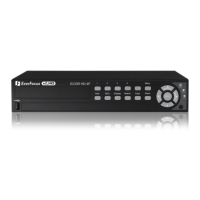
To change this, simply use the arrow keys on the DVR which also
represent the CH1, CH2, CH3 and CH4 keys (These are the top four left
buttons). Use the up and down arrow keys to make your selection.
¾ CH: This field represents the camera channels 1 through 4.
¾ OP: This field is to set the option of turning motion on or off. If OP is
turned on the DVR will respond by recording when motion occurs. If OP
is turned off the DVR will not record when motion occurs. To change
this, simply use the arrow keys on the DVR which also represent the CH1,
CH2, CH3 and CH4 keys (These are the top four left buttons). Use the up
and down arrow keys to make your selection.
¾ SEN: This entry signifies the sensitivity to pick up motion for each camera.
There are four different sensitivity levels that can be used, High, Standard,
Basic, Low. The default setting is standard. To change this, simply use the
arrow keys on the DVR which also represent the CH1, CH2, CH3 and
CH4 keys (These are the uttons). Use the up and down
arrow keys to make your
also
H4 keys (These are the top four left
top four left b
selection.
¾ Manual Edit: This field represents manual editing of each camera for
motion. To change this, simply use the arrow keys on the DVR which
represent the CH1, CH2, CH3 and C
buttons). Use the up and down arrow keys to make your selection. Once
you have chosen the channel you would like to manually edit, press the
ENTER button. This will bring you to a new screen.




 To Next Page