Examples of printer configuration
Page 25
6.4 Configuring a printer in Wi-Fi mode - Ad hoc with no security
6.4.1 With the embedded web server
1. Open the web server page.
2. Click on Network tab.
3. Uncheck the DHCP checkbox to disable the DHCP mode.
4. Complete the IP address and Subnet mask elds.
5. Click on Wireless tab.
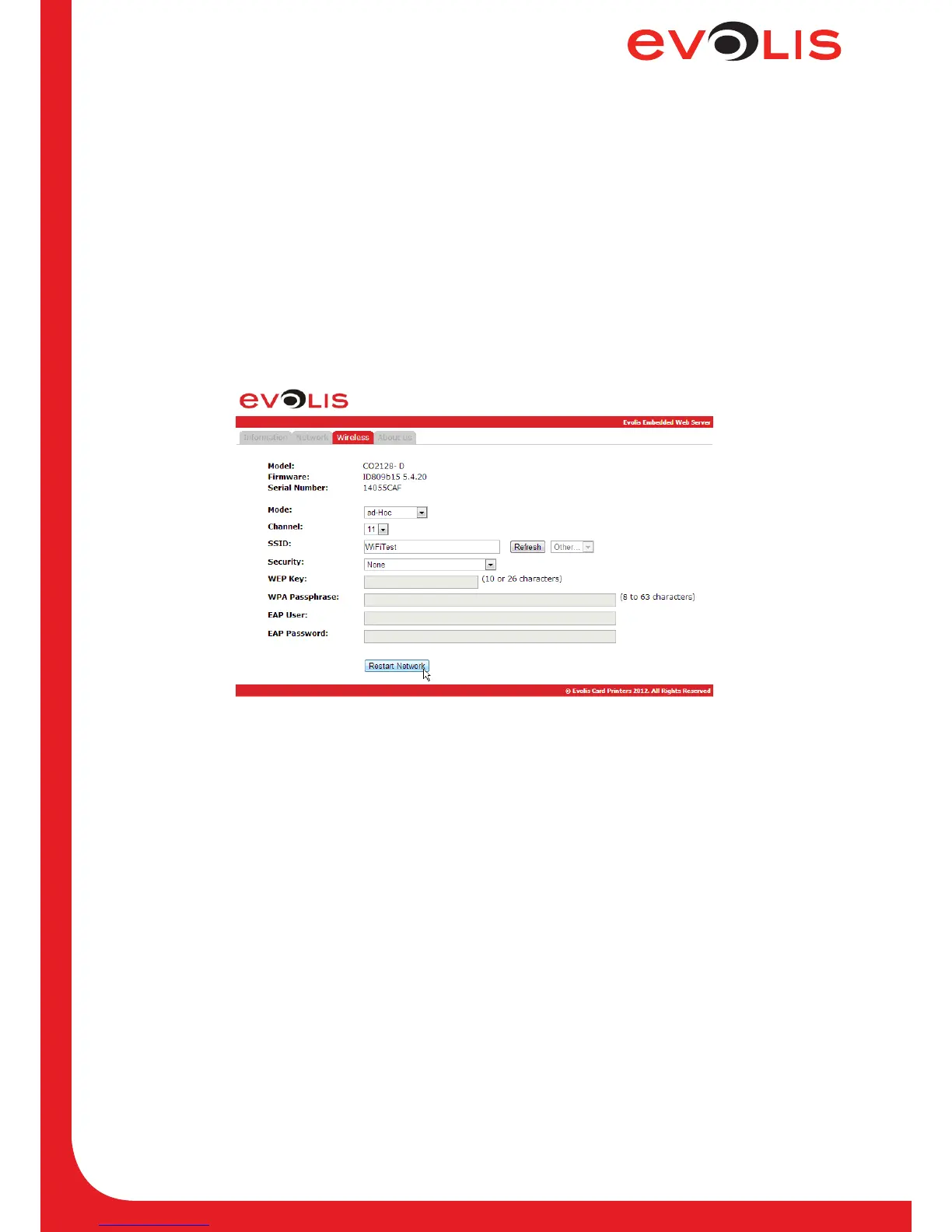
6. Choose ad-Hoc in Mode eld.
7. Complete the Channel and SSID elds and set the Security eld to None.
8. Click on Restart Network button.
Figure 14: Web server (Wi-Fi - Ad hoc)
6.4.2 With escape commands
1. Open the Evolis Print Center and right-click on the printer you want to congure, then on properties.
2. In the printer properties window, click on Maintenance.
3. In Command eld, type sequentially:
- Pip;192.168.2.13
- Penm;255.255.255.0
- Pwifi;MDE;1
- Pwifi;WLCH;#Channel (i.e. 11) where #Channel is the channel of WiFi signal (between 1 and 13).
- Pwifi;WSI0;Name_Of_SSID (i.e. WiFiTest)
- Pwifi;WST0;0
- Snetw
- Check your conguration by typing:
· Rip;1. The result should be: 192.168.2.13 Manual
· Rwifi;all You should verify that the previous parameters are correctly set.



 To Next Page