IN1604 DTP and IN1604 HD Scalers • Configuration Software 68
Audio Configuration Page
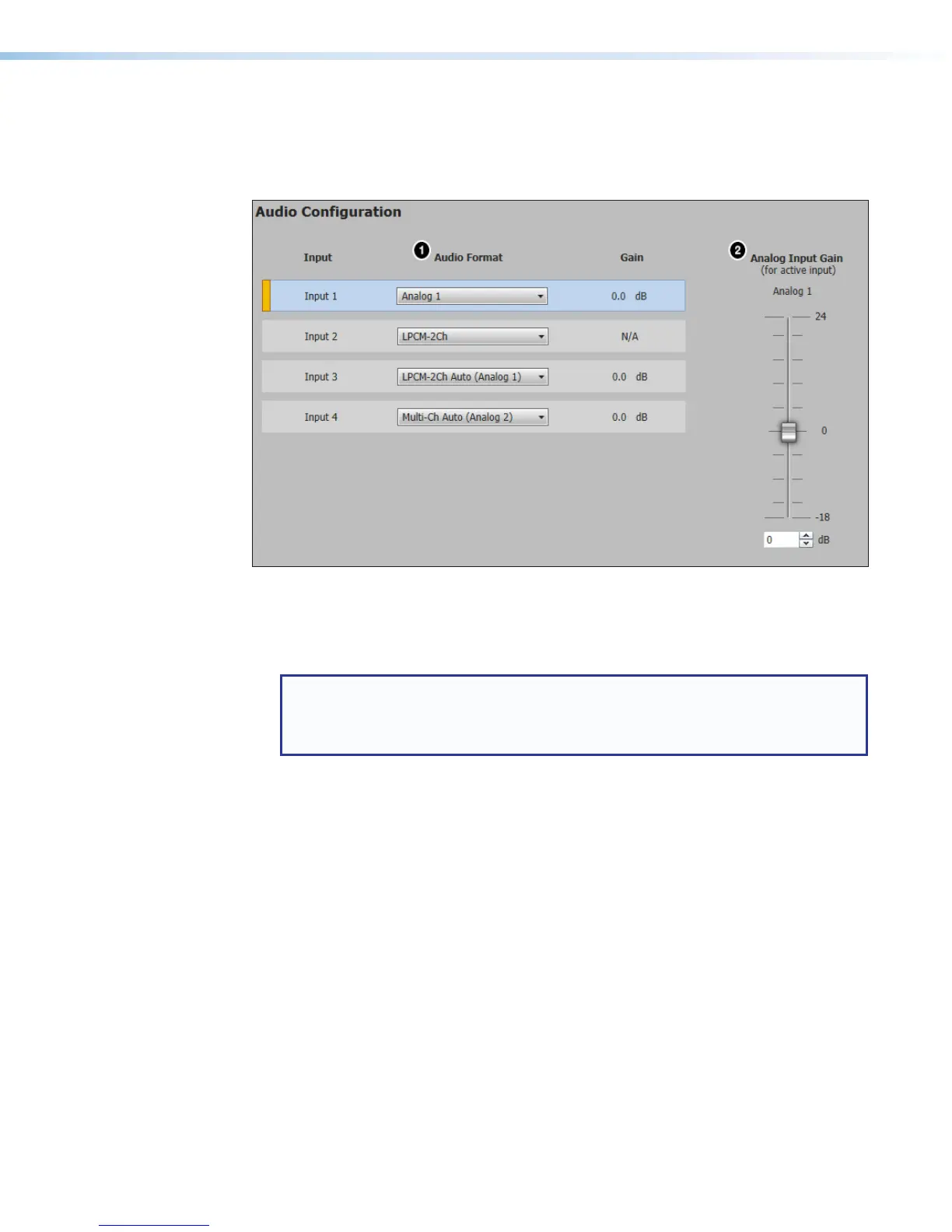
From the Audio Config page, audio inputs and outputs can be configured and mixed. Click
the Audio Config icon (see figure 38,
5
on page 58) on the Global Navigation Bar to
open this page.
Figure 50. Audio Configuration Page
1. From the Audio Format drop-down menu (see figure 50,
1
), select the desired audio
input format. The audio input format specifies whether the audio input is analog, digital,
or not to be sent to the output.
NOTE: Analog Input gain adjustment applies only to analog signals. The Input
Gain fader is available only when the audio format is set to Analog 1, Analog 2,
LPCM-2Ch Auto (Analog 1), Multi-Ch Auto (Analog 1), LPCM-2Ch Auto
(Analog 2)
, or Multi-Ch Auto (Analog 2).
For input 1, available formats include:
• None — Audio is not sent to the output. This option sets “No Audio” EDID.
• Analog 1 — Analog audio from analog audio input 1 (TRS) is sent to the output.
This option sets “No Audio” EDID.
• Analog 2 — Analog audio from analog audio input 2 (captive screw) is sent to the
output. This option sets “No Audio” EDID.
For all other inputs, available formats include:
• None — Audio is not sent to the output. This option sets “No Audio” EDID.
• Analog 1 — Analog audio from analog input 1 is sent to the output. This option
sets “No Audio” EDID.
• Analog 2 — Analog audio from analog input 2 is sent to the output. This option
sets “No Audio” EDID.
• LPCM-2Ch — The digital input is configured to receive 2-channel LPCM audio. This
option sets 2Ch audio EDID.
• Multi-Ch — The digital input is configured to receive multi-channel audio. If
multi-channel audio is not available, 2-channel LPCM audio is passed to the digital
outputs. This option sets Multi-Ch audio EDID.













 To Next Page