IN1604 DTP and IN1604 HD Scalers • Configuration Software 72
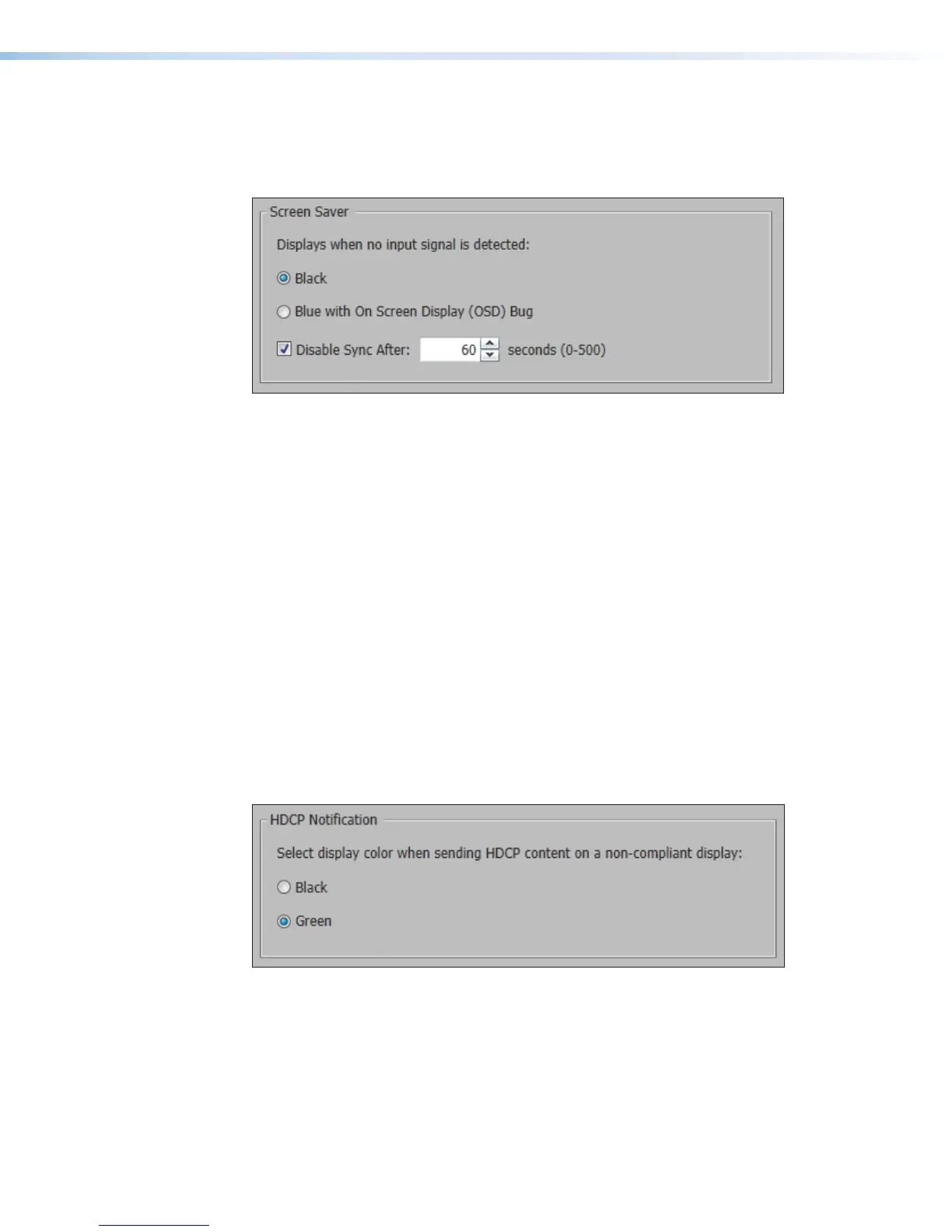
Screen Saver panel
When no active video is detected on the selected input, the screen saver mode is activated.
The output sync can be disabled after a user-set duration, which allows display devices to
go into a low power, standby state.
Figure 53. Screen Saver Panel
1. Click one of the radio buttons to select a display when the screen saver is enabled.
• Black — Mutes video output to black for a set duration before disabling output
sync (default).
• Blue with On Screen Display (OSD) Bug — Displays a blue background with
a moving OSD message that indicates “<scaler model>: Input <number> No
Signal
” for a set duration before disabling the output sync.
2. Select a duration to display the screen saver before the output sync is disabled.
• Select the Disable Sync After check box to disable the scaler output sync after
a set duration without an active input. When selected, the Duration On Screen
field becomes available.
• In the Duration field, enter a value in the field or click the Up and Down arrows to
specify a duration to wait before disabling output sync during inactivity. The default
is to never disable the output sync.
HDCP Notification panel
HDCP notification indicates when HDCP content restrictions prevent a video signal from
passing.
Figure 54. HDCP Notification Panel
Select one of the following radio buttons:
• Black — Displays a black or muted screen when an encrypted source is sent to a
display that is not HDCP-compliant.
• Green — Displays a green screen when an encrypted source is displayed on a sink that
is not HDCP-compliant (default).













 To Next Page