Network Button Panels • Software-Based Configuration and Control 29
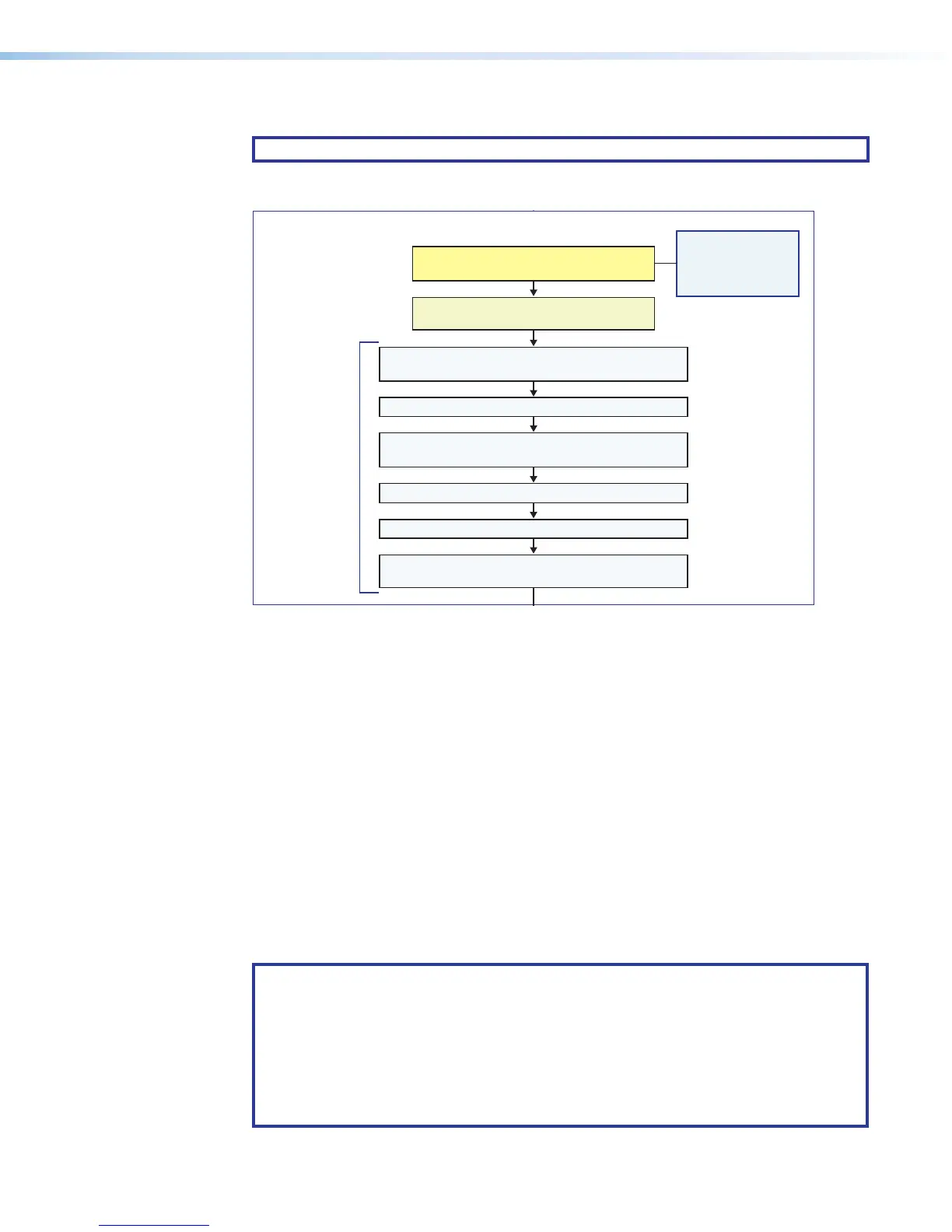
Basic Setup Steps: a Guide to this Section and Other Resources
NOTE: GC projects can be created offline and uploaded to the hardware at a later date.
Follow the steps in Hardware Features and Installation starting on page6. The
overall process for setting up a button panel and system is as follows:
Configure the IP settings of each NBP
and of the control processor or receiver.
See the network
communication
setup instructions
Create a new GC Professional or GC Plus project
and add the control processor or receiver to it.
Congure ports.
Add NBP button panels and congure the buttons.
Test the system, make adjustments,
nalize conguration.
Save the project.
Cable the NBPs and the control processor or HCR receiver,
then apply power.
Cable all devices.
Prepare the installation site.
Get ready.
Change buttons or faceplates, if desired
Mount the NBPs.
Create monitors, schedules, timers, macros,
and local variables.
Build and upload the conguration to
the controller or receiver.
If desired or required, install a new
security certicate (via Toolbelt).
Within Global Configurator
(GC Professional or
GC Plus mode):
Figure 28. Overall Configuration Steps
Downloading the Software and Getting Started
Software updates and a large variety of device drivers can be downloaded from the
Download page on the Extron website (http://www.extron.com/download/index.aspx).
When you locate the desired software or driver package, follow the on-screen directions to
download and install it.
Locating Software, Firmware, and Driver Files on the Extron Website
There are three main ways to find software, firmware, and device drivers within
www.extron.com:
• Via links from the web page for the specific product
• Via the Download page (click on the Download tab at the top of any page within the
Extron website.)
• Via links from search results
NOTE: For some software you have the option to click the Download button to begin
downloading the software file. For other software there is a link for contacting an
Extron support representative who can provide you access to the latest version.
To obtain Extron control product software, you must have an Extron Insider account
and contact an Extron support representative. Extron provides training to our
customers on how to use the software. For Global Configurator Professional, you
must first attend Extron training, pass a proficiency test, and achieve Extron Control
Professional Certification before being able to access all the features of that program.
network
communication
setup instructions
on page17


 To Next Page