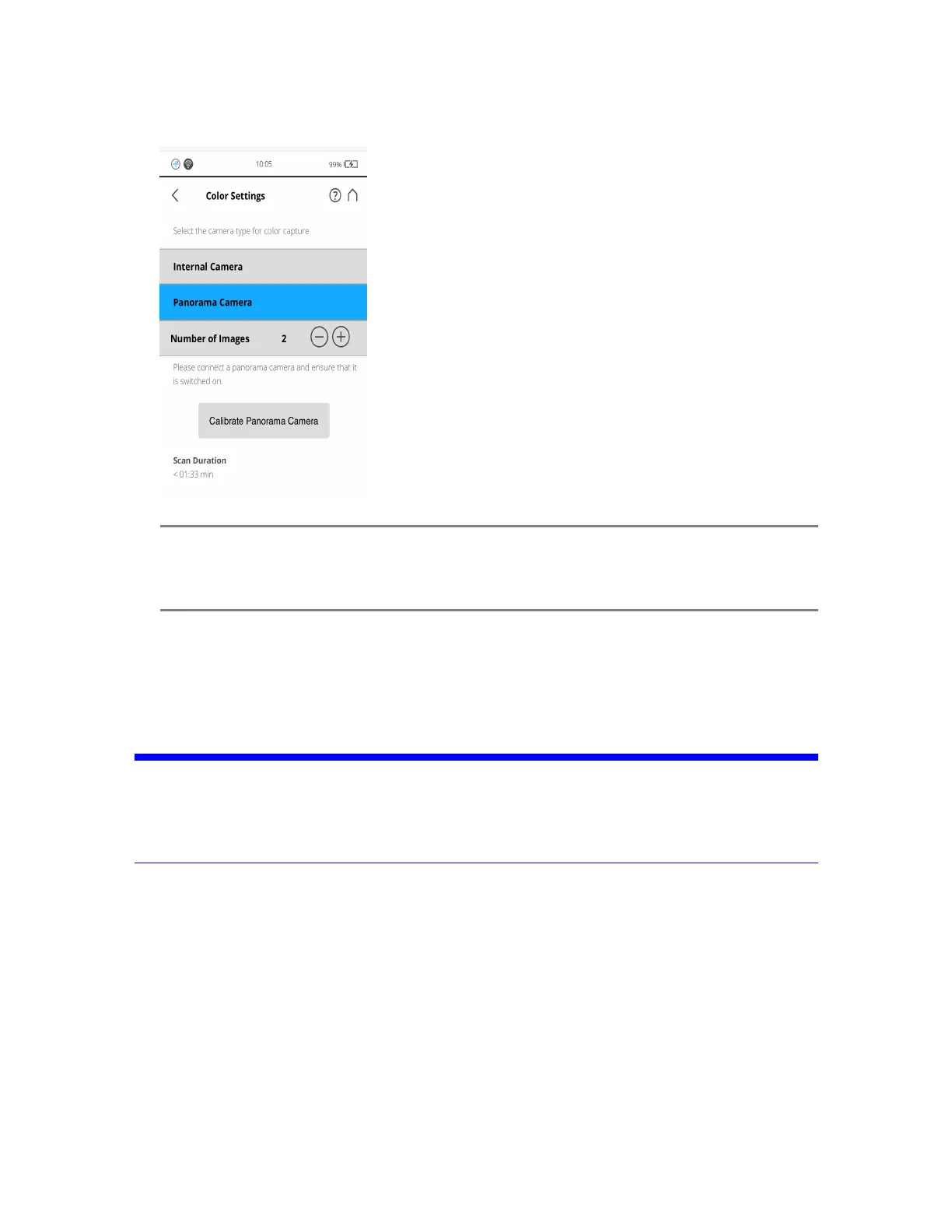
NOTE: Ifyouseetheerror,Please connect a panorama camera and ensure that it is switched on,
ensurethatthecameraandthemountingbracketareproperlyconnectedtothescanner,and
thatthecameraispoweredon.
4. ForNumber of Images,specify1,2,or4.Usethe+or-buttonstoadd/reducethenumber.More
imagesrequireadditionalacquisitiontime,andtheyconsumeadditionalspace.2imagesare
recommended.
5. TapCalibrate Panorama Cameratoperformafullsystemcalibration.
NOTICE: AvalidfullsystemcalibrationisrequiredinordertousecolorimagesinSCENE.Thisinitial
fullsystemcalibrationmustbeprocessedinSCENE(version2021.0orhigher)todetermine
allrequiredsystemparametersforthecamerawithyouruseraccount.Anewfullsystem
calibrationisrequiredwheneveryouchangecomputers,oruseadifferentuseraccount.
PanoCamCalibration
SCENEusescalibrationscanstoalignthecolorsoftheRicohThetaZ1imageswithpointsintheFocus
scans.
SCENEusescalculatedparametersfromthesystemcalibration(theinitialfullsystemcalibration,and
subsequentcalibrationupdates)tocolorscans.
Calibrationscanimagesaresavedtoanflsfolderonthescanner'sSDcard,andyoucanusethemin
SCENE,justlikeotherscans.TocolorizeaPanoCamscan,youmustcaptureatleastoneinitialPanoCam
FARO
®
FOCUS® Laser Scanner Accessories Manual
Chapter 5: PanoCam
FARO FOCUS® LASER SCANNER (00.00) Page27of36



 To Next Page