3.4.4 Monitoring the running status -- Menu #3 "Drive Monitoring" --
Menu #3 "Drive Monitoring" in Programming mode allows you to check the running status during maintenance
and test running. The display items for "Drive Monitoring" are listed in Table 3.7.
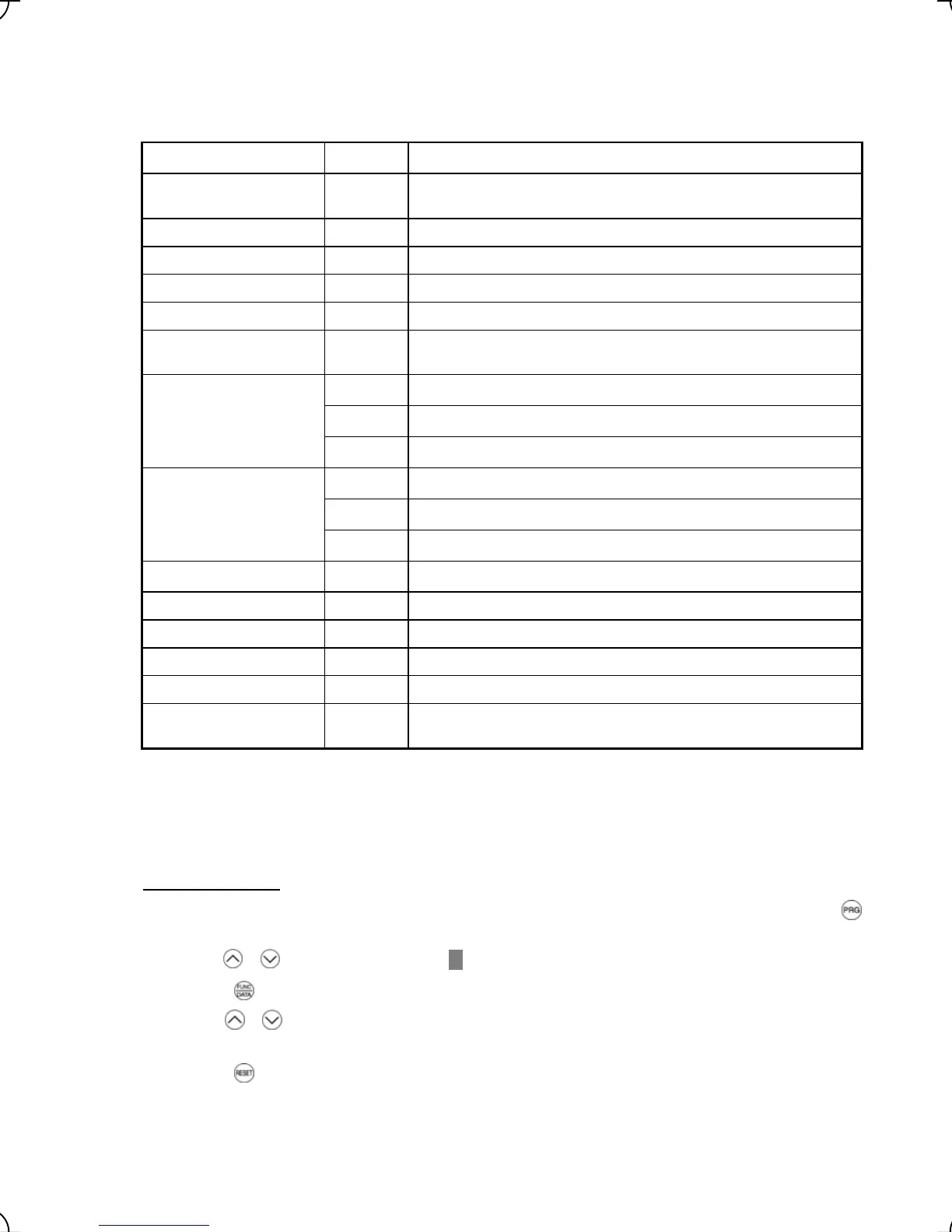
Table 3.7 Drive Monitoring Display Items
Item Symbol Description
Reference speed (final) Fot1 Reference speed (final) commanded to the Automatic Speed Regulator
(ASR) (Hz)
Output frequency Fot2 Frequency being output (Hz)
Output current Iout Output current value (A)
Output voltage Vout Output voltage value (V)
Torque (%) based on the motor rated torque being at 100%*
1
Calculated torque TRQ
Reference speed
(pre-ramp)
Fref Reference speed (pre-ramp) currently specified (Hz)
FWD Running forward
REV Running reverse
Rotation direction
Blank Stopped
IL Current limiting
LU Undervoltage detected
Running status
TL Torque limiting
Motor speed SYN Detected speed (r/min)
Elevator speed LIN Detected speed (m/min)
Reference torque bias TRQB Value (%) based on the motor rated torque being at 100%
Reference torque TRQC Value (%) based on the motor rated torque being at 100%
Reference torque current TRQI Value (%) based on the motor rated current being at 100%
Electronic thermal for
motor
OLM Value (%) based on the electronic thermal overload protection level
being at 100%*
2
*
1
In vector control with PG, this item shows the reference torque.
*
2
It is not supported in a certain ROM version of the inverter. It displays “---“ for symbols not supported. When
ROM version of a multi-function keypad is 8800, it doesn’t display “OLM”.
Note: FRENIC-Lift supports only symbols listed in the above table. It displays "---" for symbols not supported.
Basic key operation
(1) When the inverter is powered on, it automatically enters Running mode. In Running mode, press the
key to enter Programming mode. The menu for function selection will appear.
(2) Use the / keys to move the pointer
Æ
to "3. OPR MNTR."
(3) Press the
key to display the monitor screen (one out of a total of 6 pages).
/
(4) Use the
keys to select the target item page and confirm the running status information for that
item.
(5) Press the
key to go back to the menu.
Figure 3.13 shows the LCD screen transition for "3. OPR MNTR."
3-14



 To Next Page