-20-
When copying is completed, "BKUP_PIC" folder is created on the Micro SD card. Copied im-
agesarestoredwiththefollowinglenames:
Recording Date
Recording Time
Micro-SDcardsneedtobeformattedwhenusingtheminthismonitorforthersttime.
* When formatting an micro-SD card, all existing data on card is erased.
* To EXPORT RECORDED IMAGES, refer to following item on this page.
* To VIEW SD CARD INFO, on main menu page, touch Multimedia->Memo information.
Note:
* This action will overwrite all existing images in the "BKUP_PIC" folder on the micro SD card.
* If the number of images or folders exceed the limit of micro SD card, they cannot be copied.
* The images on the micro SD card cannot be copied into the built-in memory.
* If copied is fail, try to format the SD card on the monitor.
20151119_115125.jpg
Copying recordings to SD card
Formating an SD card
You can copy recordings(videos/images) stored in the built-in memory to a SD card.
• On main menu page, touch [Media]->[Copy to SD], the information of "Copy Pictures To
SD?" will be asked.
• Touch
icon to copy. Touch icon to cancel.
* When a sound beep beep is sent out and a blue screen is displayed, formatting is complete.
* It may take some time until formatting has been complete.
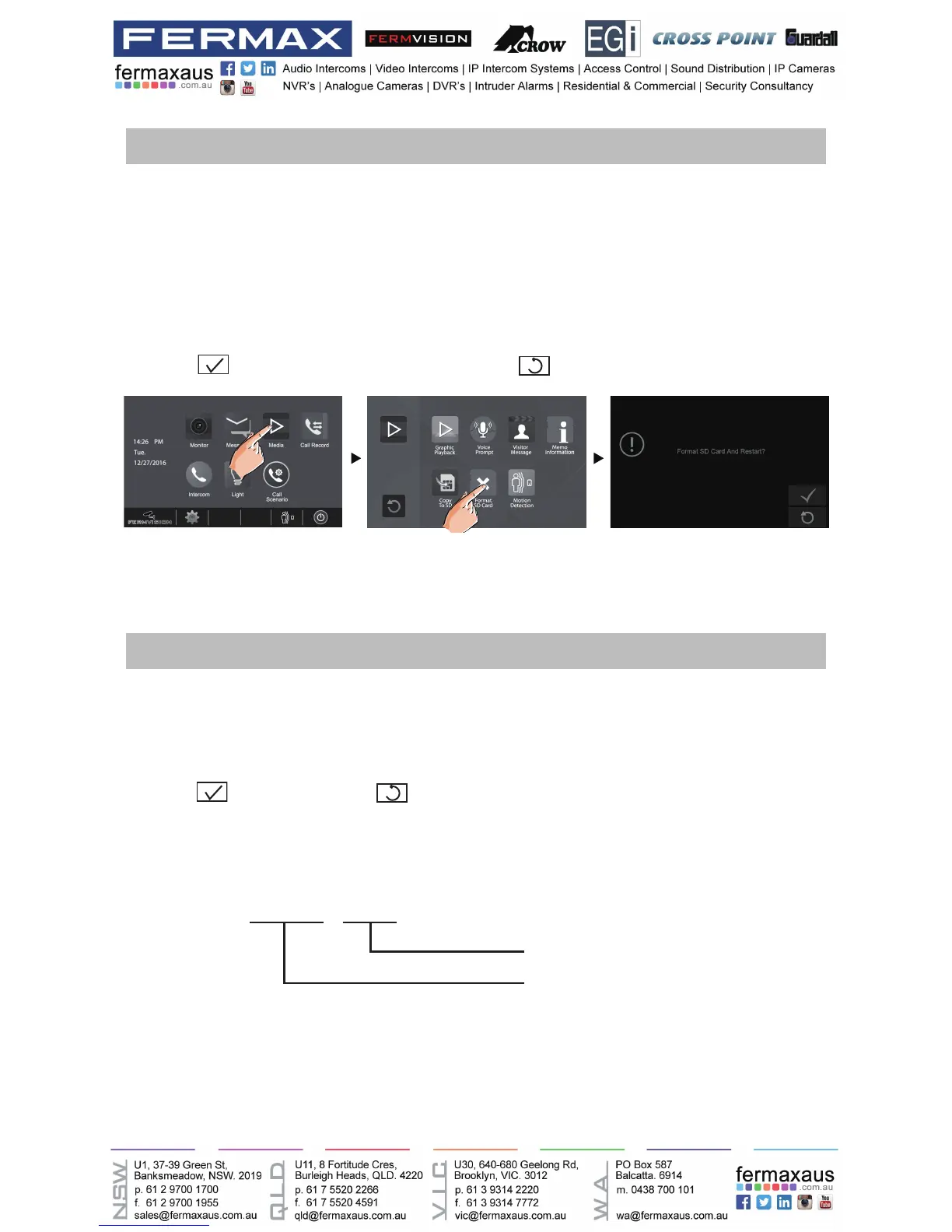
1.On main menu page,touch Multimedia->Format SD Card. A notice message is displayed.
2. Touch
icon to continue with formatting. Touch icon to cancel formatting.



 To Next Page