-27-
Setting date and time
Note: 1.You can also synchronize the system time.
2.Touch
icon to exit and return to main menu page.
Date&Time
Sync From System Clock
RTC Server Enable
2016 03 08 14 26 30
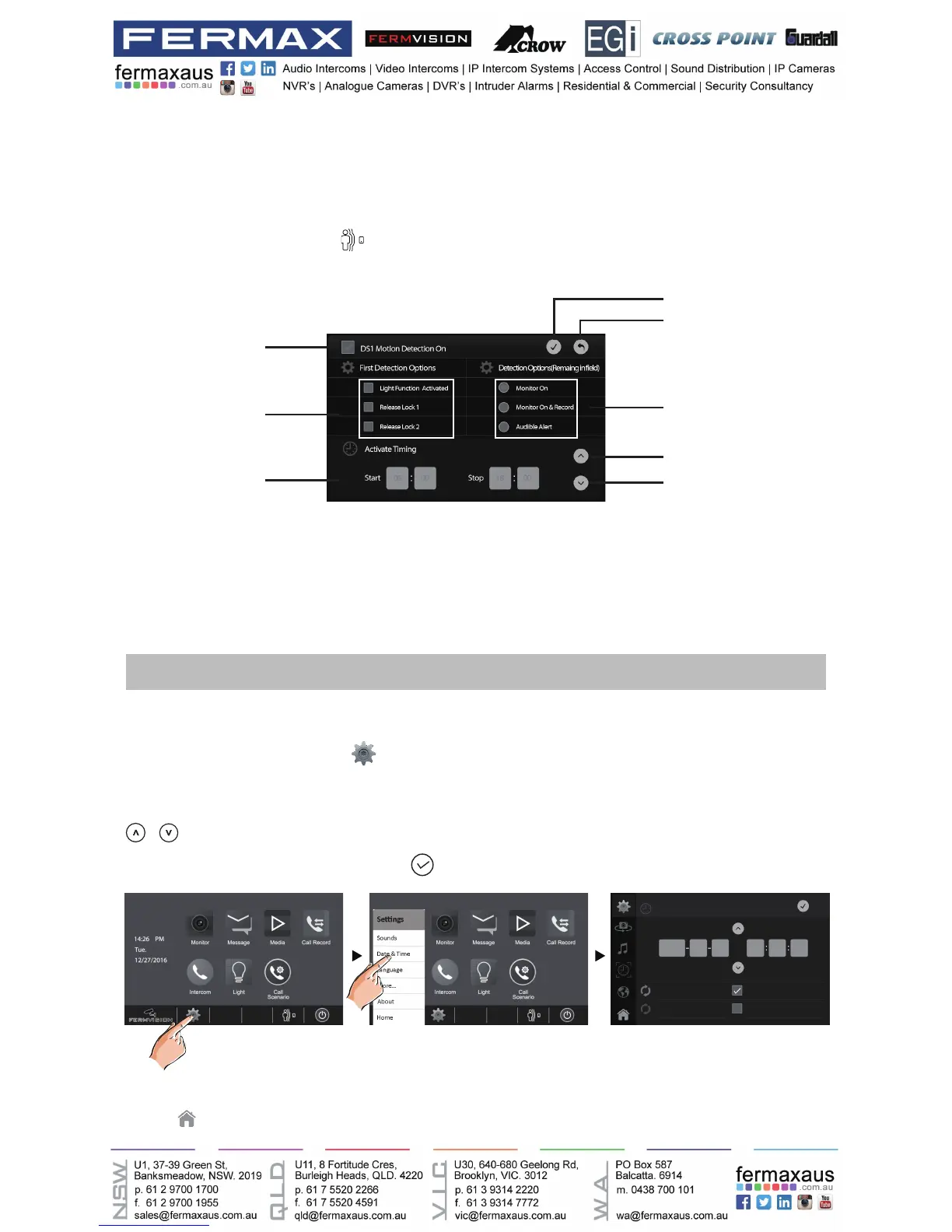
You can correct the current date and time at any time by following the procedure below.
1.On main menu page, touch
settings icon ->[Date&Time]. Or directly touch current date
and time area in shortcut to enter Date&Time setting page.
2.Touch the setting target of month, date, year, hour,minute and second individually, then touch
/ icon to change the value.
3.Whenthesettinghasnished,touch
to save the settings.
The following is taken door station1 for example.
1.On main menu page,touch
icon.
2. Touch DS1 Detection item.(the door station with motion detector should be online)
* The detection settings for other door staions are the same as door station1.
Should be selected to
activate door station1
motion detection
The reaction for door
station
(Multiple Choice)
Duration time for mo-
tion detection
06 2200 00
Save settings and exit
Unsave and exit
The reaction for monitor
(Single Choice)
Increase timing
decrease timing
Setting door station detection:
*On main menu page, touch [Multimedia]->[Motion Detection] icon, the most recent motion
detect records are displayed.



 To Next Page