which supports adding songs to my favorite in batches, adding songs to playlist in batches, deleting songs in batches and
other operations. Please refer to the following sections for details.)
3.11 Bluetooth receiving
Choose BT receiver at the main menu and click "Yes" on the pop-up dialogue to enter Bluetooth receiving mode (Click
'No' will not turn on Bluetooth) . After entering Bluetooth receiving mode, the indicator light will be on (you could refer to
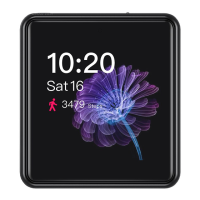
the previous section for status indicator light). The page will automatically switch to the countdown page after a few
seconds (as shown in second picture above).
During the time, you can swipe right from the left edge of the screen to exit from the countdown page and swipe one
more time to exit from the Bluetooth receiving mode; if no operation is made during the time, the device will enter
standby mode with the screen turned off after the time is up. At this time, you can double click the" Power/Lock" button
to wake up the screen. When the M5 is at Bluetooth receiving mode, press the "Vol +/-" button briefly to adjust the
volume of the transmitter; press the "Power" button briefly to play/pause; hold the "Vol +" button to switch to next track
and hold the "Vol-" button to switch to previous track; double click the "Power" button to turn off or wake up the screen;
hold the "Vol +" and "Vol -"buttons at the same time for 3s until the red and blue lights flash alternately, M5 will clear
current pairing and enter pairing mode.
When the M5 is at Bluetooth receiving mode, play the music and the current Bluetooth codec will be shown in
current page.
You could refer to the previous section for status indicator light when the M5 is at Bluetooth receiving mode.
3.12 Settings
Choose Setting at the main menu and enter setting page. The setting page includes 4 options: BT transmitter, Play
settings, System settings and Update Media lib. The following is a detailed introduction of these four options.


 To Next Page