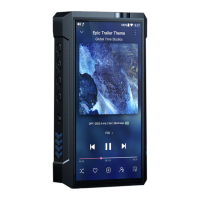
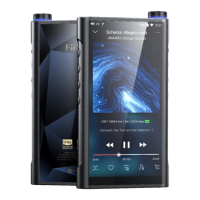
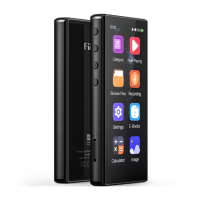
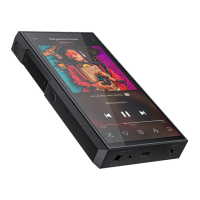
The direction of one side of the key is the default 0° display direction. You can set to different display directions according
to meet the needs of different use scenarios.
3.15.12 Double tap the screen
The default is "not applicable", and there is no response when tapping the screen when the screen is off. It can be set to
"Turn the screen on". When the screen is off, double tap the screen to turn on the screen.
3.15.13 Raise hand to turn on the screen
The default is "off", indicating that this feature is not enabled. When the option is "on", indicating that this feature is
enabled. When a M5 used with strap on hand, as long as according to watch action, lift the wrist to make the M5 in the
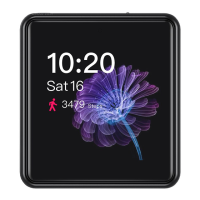
screen up and are in a horizontal interface, the M5 will automatically turn on the screen. If the lock screen clock function
is on, you can read the information such as clock in lock screen clock page. The screen will automatically turn off after
3s.
(note: This function will not take effect when the system is in standby mode. When this function is needed, it is
recommended to set the idle standby and sleep to the OFF.)
3.15.14 power button
This option has two options, the default is "Single press to play, double press to lock screen". At this time, while playing
the music, click the power button will play/pause (This function is disable while not playing) .Double click to lock/unlock
the screen. When selecting "Single press to lock screen, double press to play ", the function is the opposite. Click the
power button to lock/unlock the screen and double-click the power button to play/pause.
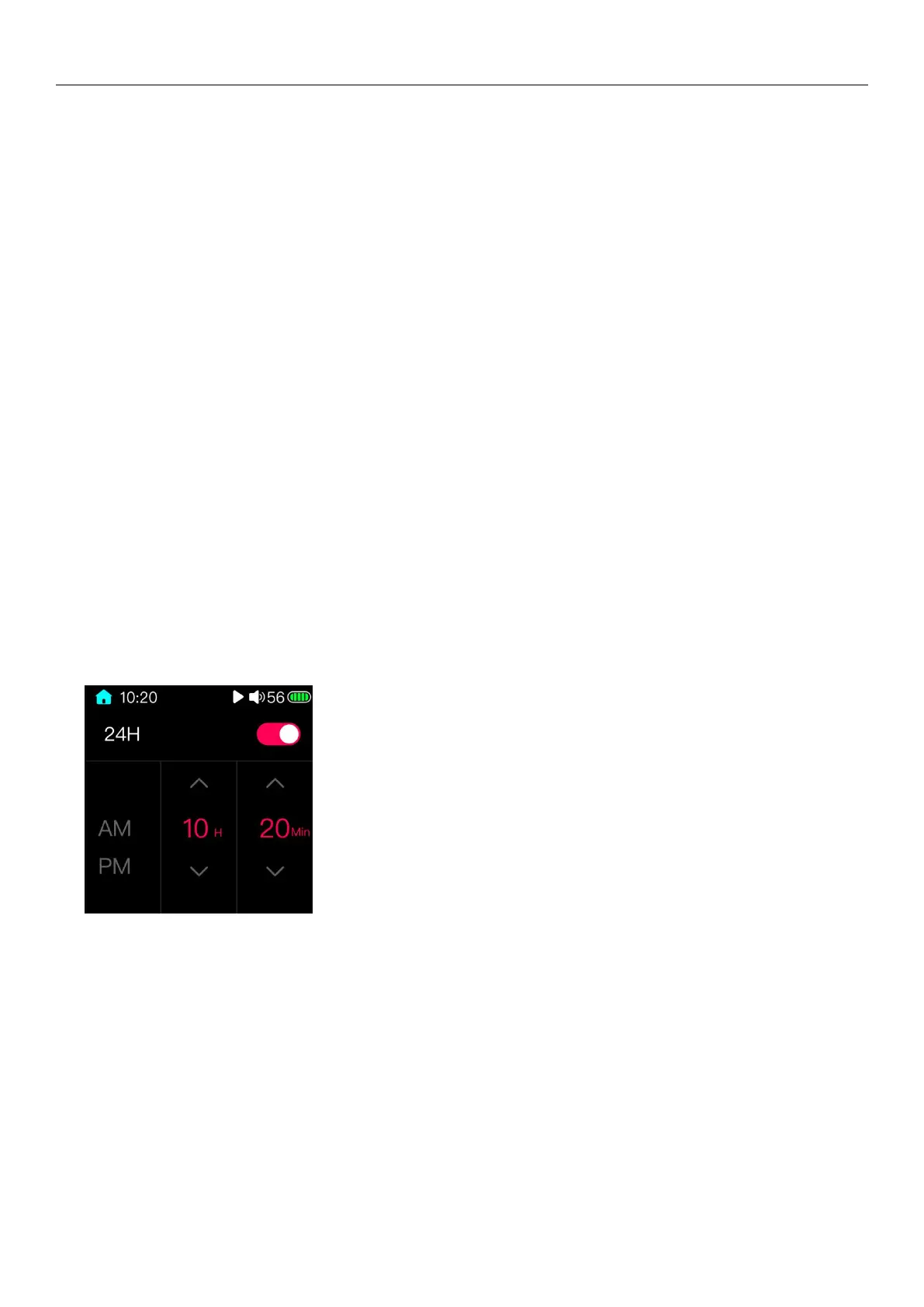
3.15.15 Time setting
After entering the time setting page, it will display as shown in the picture above. The switch at the top is used to select
the 24-hour setting, which is on by default, and the clock will be displayed in the 24-hour setting or in the 12-hour setting
when it is off.
"Hour" and "minute" setting method: click the symbol "^" or "v" on the display screen, you can set it to the current time
value. When holding this symbol, the time value will continuously increase/decrease, which can quickly complete the
setting.


 To Next Page