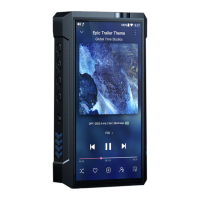
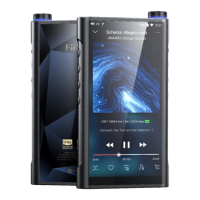
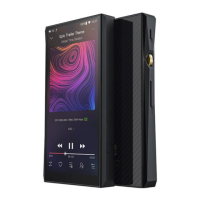
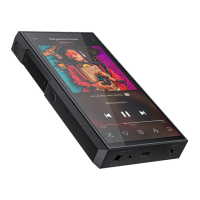
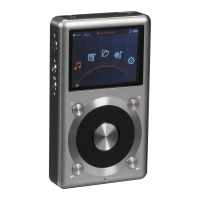
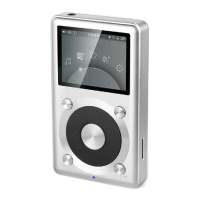
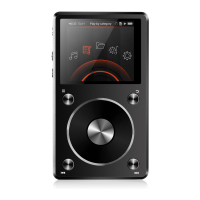
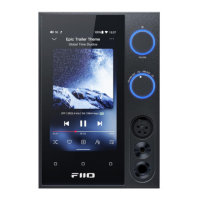
2、Indicator display of different input codes (when playing)
3.6 Recording
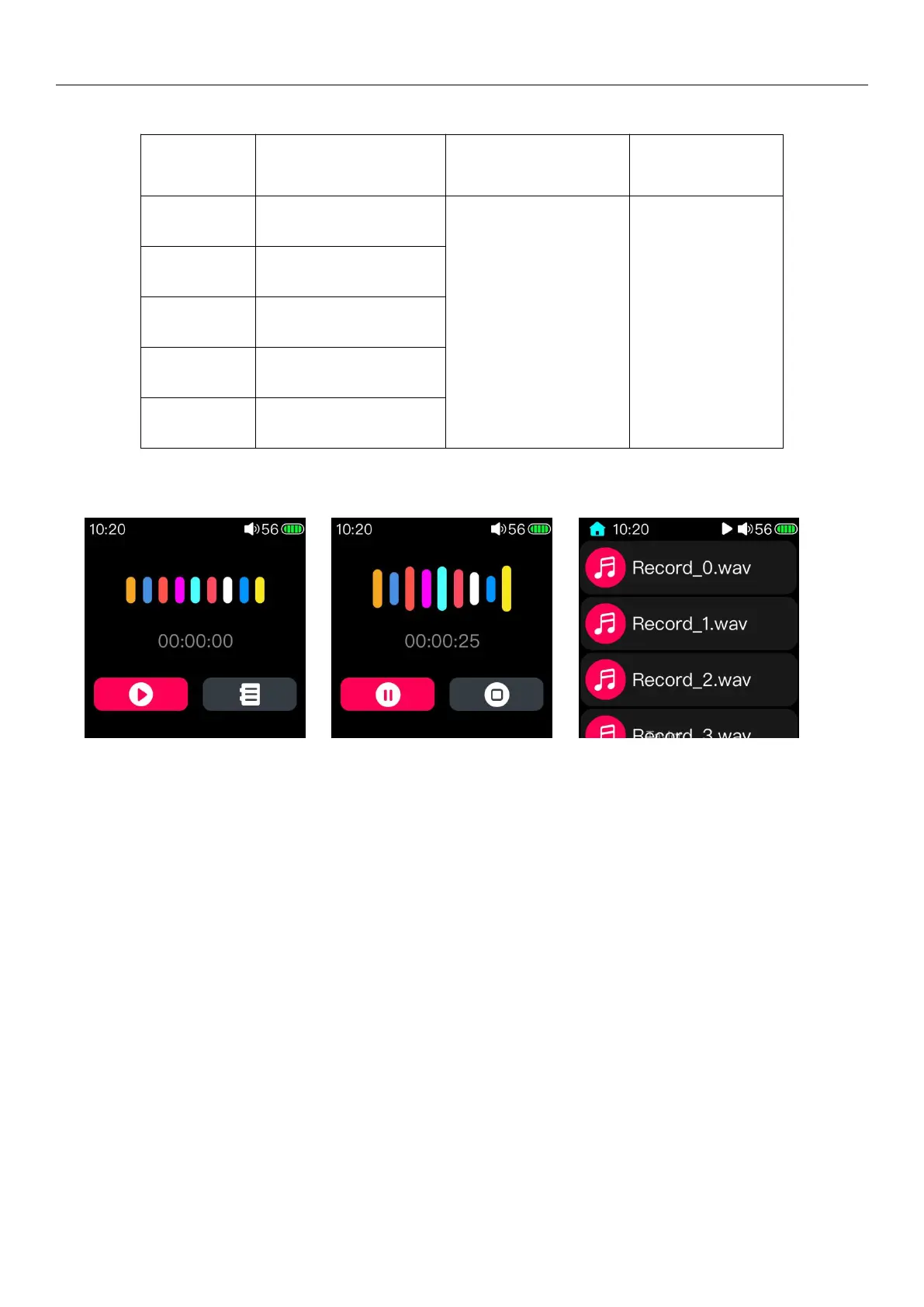
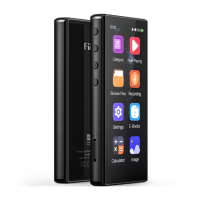
After clicking the 'Recording' icon from main page, the first picture above is displayed. Click the red icon in lower left
corner to start record. (As shown in the second picture above.)
During recording, you can pause the record by clicking the lower left corner icon. Or stop the record by clicking the
lower right corner icon. You could choose whether saving the record at that time as needed.(After saving the record, the
page is shown as the first picture above ) Click the lower right corner icon to enter the record file page and select the file
to play. If you don't need to read the record files, you could exit this page by sliding from left edge to right.
The recording file will be saved in the Record folder in the root directory of the Micro SD card.
(Note: 1.please inserts the Micro SD card before recording, and make sure that the Micro SD card has enough free space to
save the recording file. If the MICRO SD card is not inserted, the recording cannot be started.
2. during the recording process, the song cannot be played at the same time, and the recording interface cannot be
exited. When you need to play the song, please exit the recording and play it again; if you play the song first and then enter
the recording, the recording will stop automatically after the recording is started.
Red light indicates
the current working
status
Codec indicator
light stays steadily
on


 To Next Page