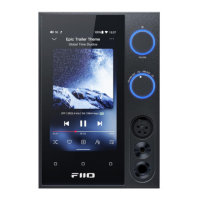
seconds to force the shutdown)
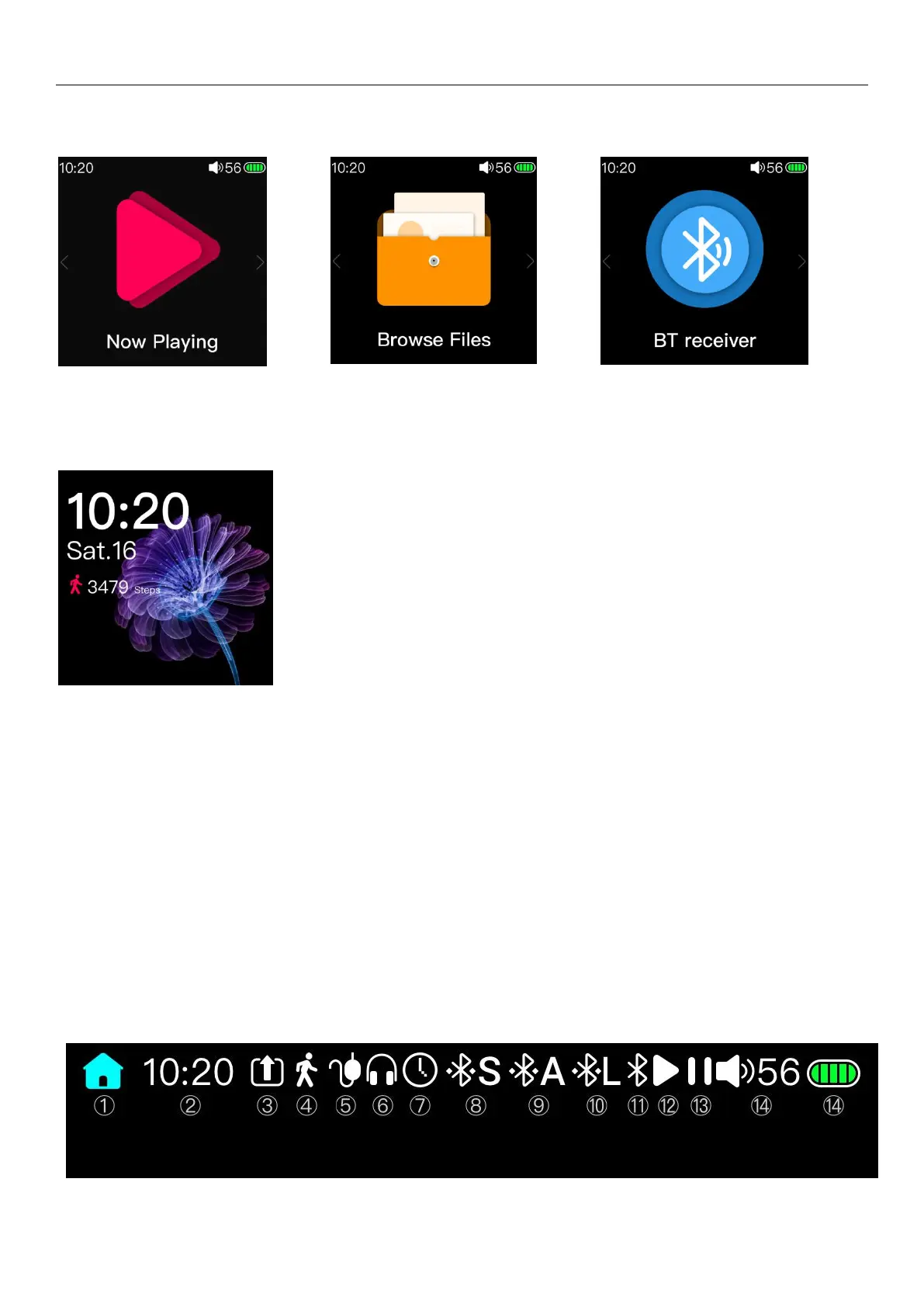
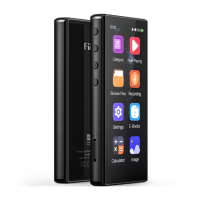
3.2 Main interface menu
In the main interface, you can scroll the cursor by sliding the touch bar, select the corresponding item as required, and
then press the touch bar or the side confirmation button to enter the project.
3.3 Lock screen clock
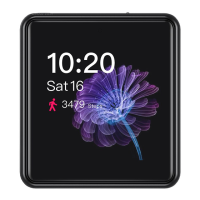
In the system setting, when the “lock screen clock” item is turned on, when the player reaches the backlight time to
automatically lock the screen (off the screen) or the user presses the power button to manually lock the screen, press the
power button to activate the screen, the interface shown above will display.
In this interface, you can slide the touch bar up or down to unlock, enter the display interface before the lock screen,
or you can press the power button again to unlock the interface.
The user can set the “Lock Screen Clock” item of the system setting to off, so that the lock screen clock interface will
not appear when the lock screen wakes up.
In the lock screen clock interface, if there is a song playing, then press and hold the volume plus button to switch to
the next song (short press is still the volume plus); long press the volume down button to switch to the previous track
(short press is still the volume minus) ).
For more different lock screen clock style, you can select it into the clock face of the system settings.
3.4 Status Bar


 To Next Page