My Networks
This screen shows the list of all the networks belonging to your Fing account. A network can be
of two types:
Unmanaged (manual scan only) - this is the classic
Fing network, created and updated every
time you run a manual scan from the Devices screen. Unmanaged networks are marked with
any of the “context” icons for Home, Office, Rental, Public or Unclassified. You can delete an
unmanaged network with a swipe-left gesture. All the customizations you made to devices will
be lost.
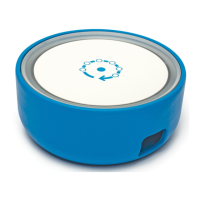
Managed (by Fingbox) - this type of network has a Fingbox and can be managed from
anywhere (locally or via Internet). Managed networks are displayed with an icon representing a
small Fingbox. If you have multiple Fingbox units activated under your account, you’ll see
them listed here. You can switch from one to another by simply tapping on the list item. If you
swipe-left to delete a managed network, the associated Fingbox will be deactivated and its
memory wiped out to factory defaults. Because of this potential data loss, a pop-up will always
ask you to confirm a deactivation.
Fingbox User’s Guide - App v6.2.1 Page 28


 To Next Page