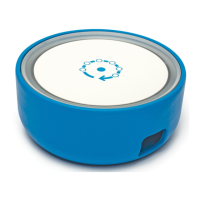
7. At power-up, Fingbox top circle will show a single white/blue light for a few seconds. This
means the power-up sequence has started.
8. Wait until the top circle lights becomes green. At this point Fingbox is ready for
activation. If the top circle doesn’t become green within 10 minutes, check the
Troubleshooting section below.
Activation
1. Make sure your phone or tablet is connected to a Wi-Fi network that can reach the router
where you attached the Fingbox.
2. Verify that the Fingbox top circle light is green (either steady or blinking).
3. Open the app store (Apple, Google or Amazon) and search for “Fing network”.
4. Install the Fing app
5. Open the Fing app
6. If you installed Fing for the first time, it will automatically scan your network. Wait a few
seconds until it completes. The more devices you have, the longer it takes to complete a
full scan. At the end of the scan, you may already see the prompt to activate the
Fingbox. If you don’t see the prompt, don’t worry and read on.
7. At the bottom-right of the screen, tap on the Fingbox icon.
8. At the top-right of the screen, tap on the (+) icon to start searching for the Fingbox to
activate. If needed, Fing will ask you to login into your Fing Account or to sign up for a
new one.
Troubleshooting and Support for activation
Activation is a smooth process and it should take you no more than a few minutes. If you have
problems during the activation, please check the following list of issues and solutions. If you still
can’t activate, send an email to our Customer Support Service: support@fing.io
I don’t remember the password for my Fing Account
Password recovery is right here on the web: https://app.fing.io/recovery
The top circle light never gets green
Fingbox system is not starting up completely.
SOLUTION 1 - restart your router
Fingbox User’s Guide - App v6.2.1 Page 6


 To Next Page