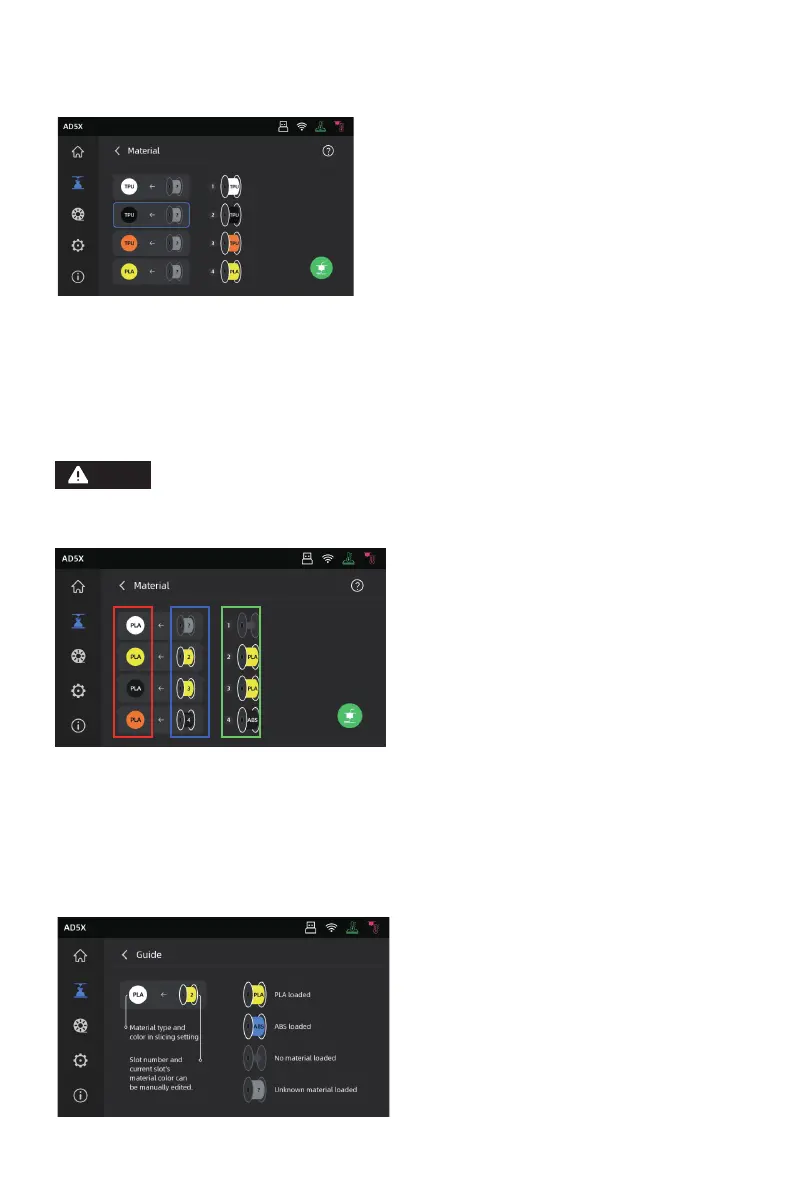
3. Click the box on the left, and then select the desired filament channel from the right. You can
select a channel multiple times. If no filament matches the color specified in the file, you can
either place the specified filament in the IFS channel or select a filament with similar properties
and a close color match. After configuring the channels, you can click to print. If the filament
selected during slicing does not match the type of filament on the IFS, you will not be able to
select that filament for printing. For example, as shown below, for a print file sliced with PLA,
you can select channels 2 or 3 with PLA for printing, but channel 4 with ABS cannot be selected.
18
If the file imported to the USB flash drive is in G-code format, the channel cannot be manually
modified. Only 3MF files support further modifications.
*Explanation:
Red box (left): Here displays the filament type and color configured in the slicing software.
Blue box (middle): Users can click to manually modify the corresponding installed filament spool.
After selecting this column, click on the corresponding filament loaded in the actual channel in
the green box. Once selected, it will be mapped to the print material.
Green box (right): Here displays information of the actual loaded filament on the device.
4. You can refer to the [Guide] for the mapping between them.
Note








 To Next Page