6.1 Print via Wi-Fi Transfer
6. Print
After successfully connecting the printer to the network, open Orca-Flashforge. After finishing
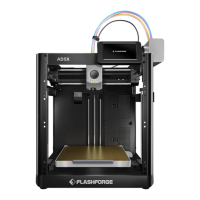
slicing, click [Print plate] in the menu, and select the connected AD5X to send the print job.
Before transferring the file, please connect the printer to a network (either wireless or wired)
and bind the printer to the slicing software. The printer and the computer must be connected to
the same LAN. There are two modes for printer connection: WAN Mode and LAN Only Mode.
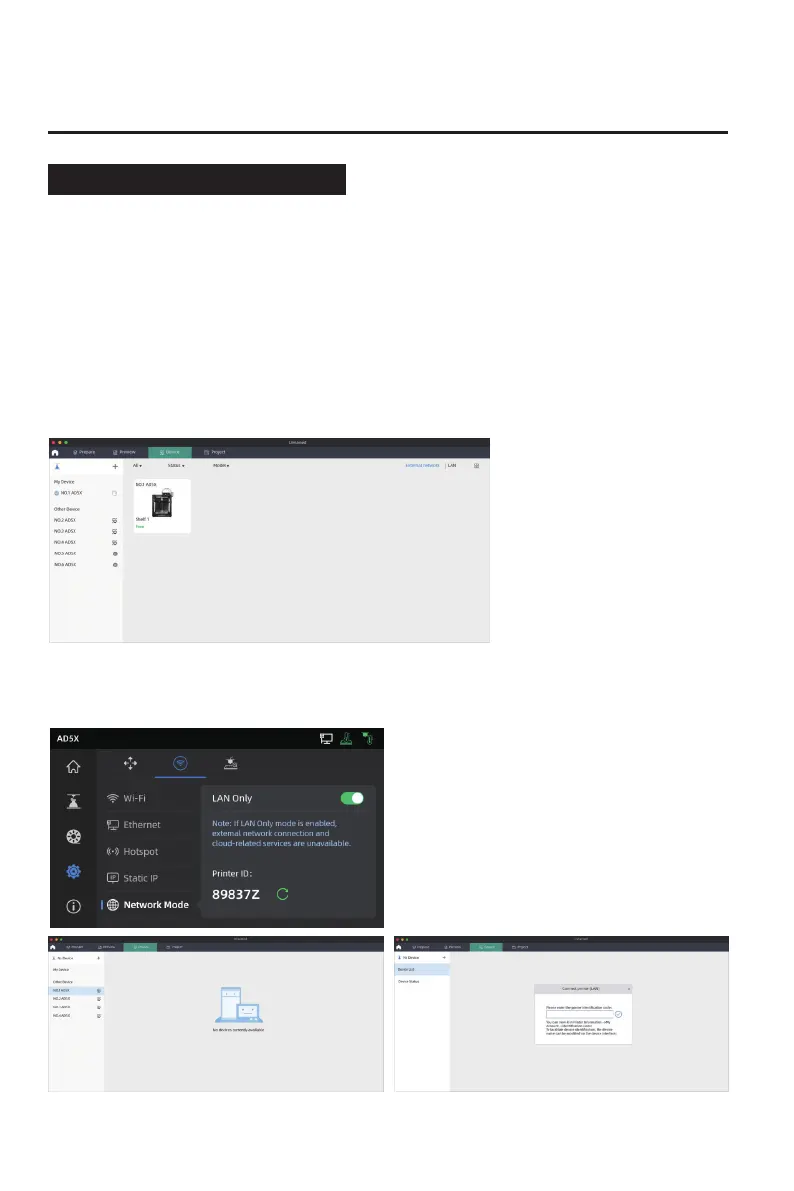
1. WAN Mode: Please log in/register your Flashforge account before connecting the printer. If the
device has already been bound and connected via the mobile app, the connected device will
be automatically displayed after you log in to the account in the slicing software. If the mobile
app is not connected, you can click [+] on the device page to open the search list and select the
desired device to connect.
2. LAN Only Mode: Enable [LAN Only] via [Network Mode]. In the slicing software, click [+] on the
device page to find the corresponding printer. Select the printer and enter the Printer ID
displayed on the printer to complete the connection.
15








 To Next Page