Note on when to perform PID calibration: This can be performed after replacing the nozzle or
when the nozzle temperature is abnormal.
7.2 Other Functions
In the device info interface, you can enable or disable sound and filament detection, and perform
firmware updates. When [Filament Detection] is enabled, the printer will stop printing if filament
runs out mid-print.
When connected to a wireless network, click [Firmware Update] to view the current version, check
for updates, and perform online firmware updates.
Printer Name and Location: Users can customize the name and location as desired for easier
management. Modifying the location can help users manage their devices for better organization.
Users can also assign groups (A/B/C), which will be displayed in both the app and slicing software,
allowing for easy filtering.
Exclude Objects
If a single model encounters an error during the printing of multiple models, you can click [ ]
and select the corresponding model to skip it. The printer will stop printing the model and continue
with the remaining ones.
20
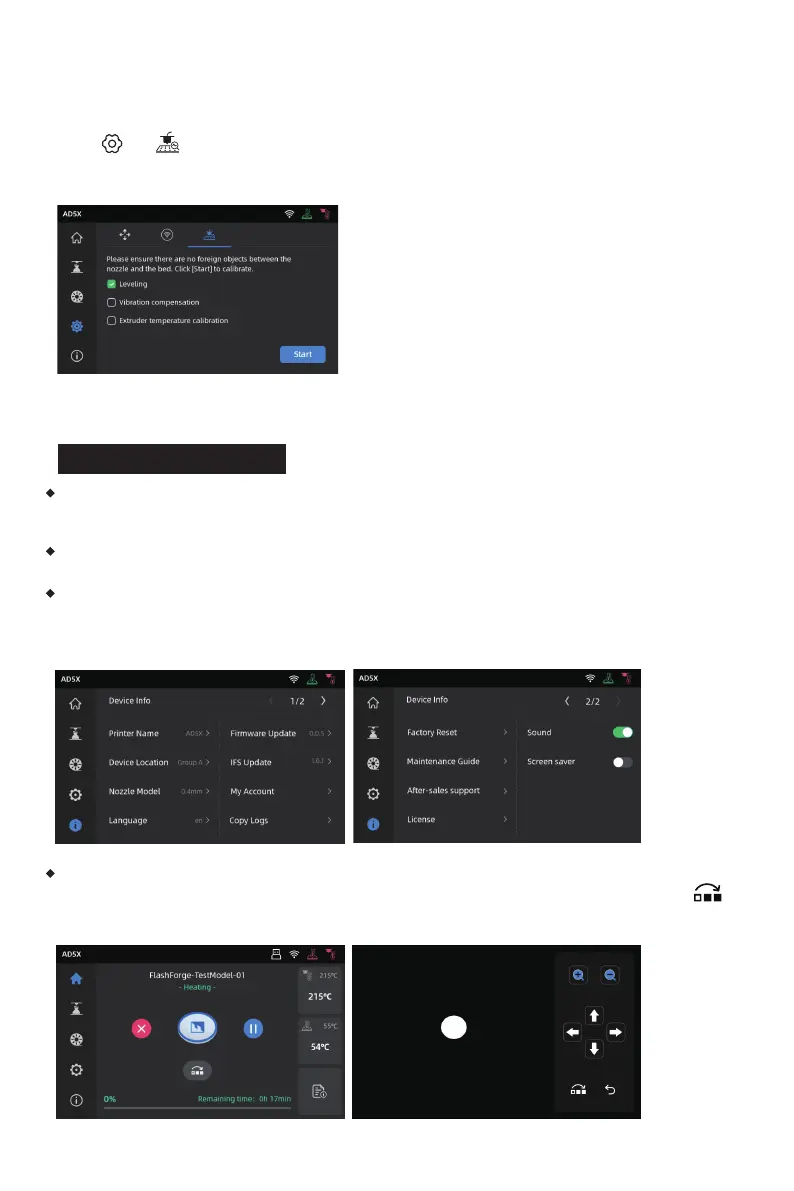
Instructions:
Click [ ] - [ ] to enter the leveling and calibration interface. Choose [Leveling] or [Vibration
compensation], click [Start], and the printer will automatically perform the corresponding operation.
(Note: Before calibration, ensure there are no foreign objects on the platform or at the nozzle tip.)








 To Next Page