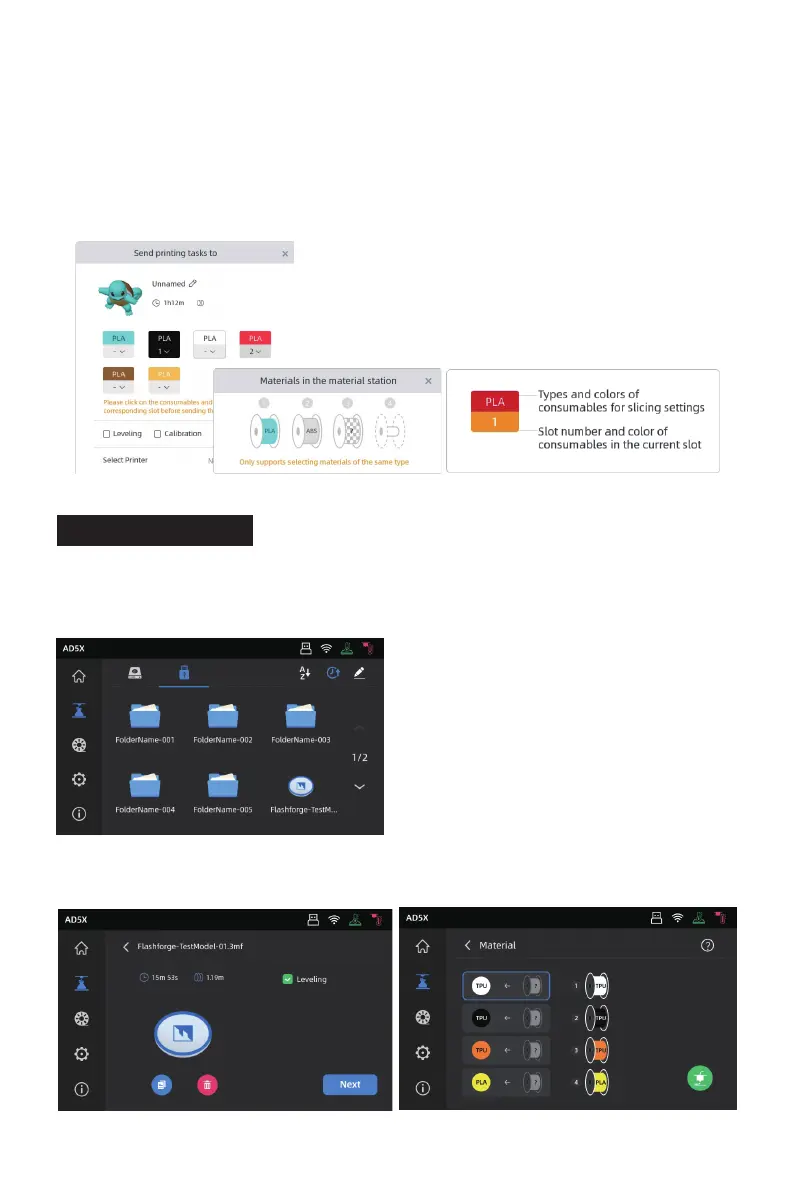
6.2 Print via USB
1. In the slicing software, select [Export plate sliced file]. This will save the sliced file in the 3MF
format. Save this file to a USB flash drive, insert the USB flash drive into your printer, and select
the corresponding file to print.
2. Click [Next] to configure IFS channels. You can manually change the filament options to match
your actual printing needs. On the screen, you can manually select the channel for each color.
4. Before sending the print job, please confirm in the pop-up window that each selected channel
for the colors matches your needs. If the channel info shows "?", it indicates that the filament on
the device has not been configured. If the channel info is blank, it means that no filament is
installed in that channel on the device. (Please ensure that the filament in that slot matches the
filament configured in the sliced file.)
17








 To Next Page