The equipment can perform printing via USB disk: save the sliced file to the USB disk, insert the USB disk into the
equipment, and select the corresponding file to print.
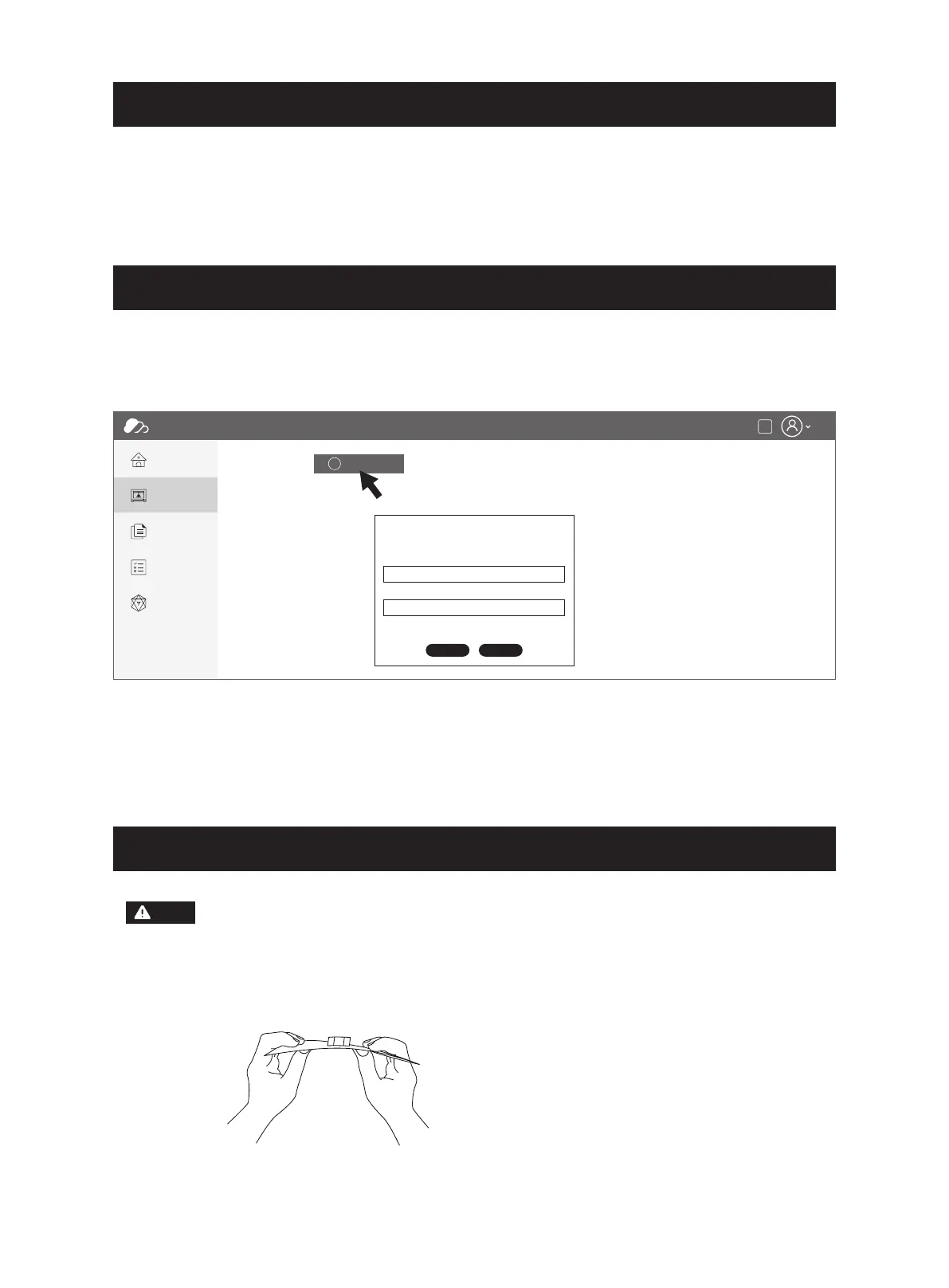
2. Click [My Printer] - [Add Printer].
Fill in the registration number (cloud registration code) on the Add Printer page, and name the printer. After
clicking OK, these information will appear in the FlashCloud interface of the printer.
FlashCloud
Home
My Printer
My Model
My Job
Model Library
My Printer The current printer is empty, please add a printer
Name Registration Code Type
Cn
+
Add Printer
Add Printer
Name
All fields must be filled in
Registration Code
OK Cancel
1. Enter the FlashCloud website, register your account, and then you can log in and use it after the email
activation.
FlashCloud: https: cloud.sz3dp.com
Notice: Wait for the platform to cool down before operating.
Warning: Please be careful when removing the model from the build plate with hand tools.
Sudden tool slippage and improper body position when removing the model from the build
plate may result in personal injury.
Attention: Do not scratch the build plate when removing the model. Scratches in the build
plate will lead to model creation errors.
Remove the magnetic steel plate and bend it and the model can be removed.
15
Note







 To Next Page