GuiderⅡ User Guide | www.flashforge.com
Method 2: Connect Via WiFi
①Connect Guider Ⅱ with your PC under AP mode
b. Tap [Tools]-[Setting]-[WLan hotspot]-[WLan hotspot ON].
c. Click on the wireless network setting in your computer, and find the wireless
signal-“Guider Ⅱ”. Click [Connect] to connect your computer with Guider Ⅱ via
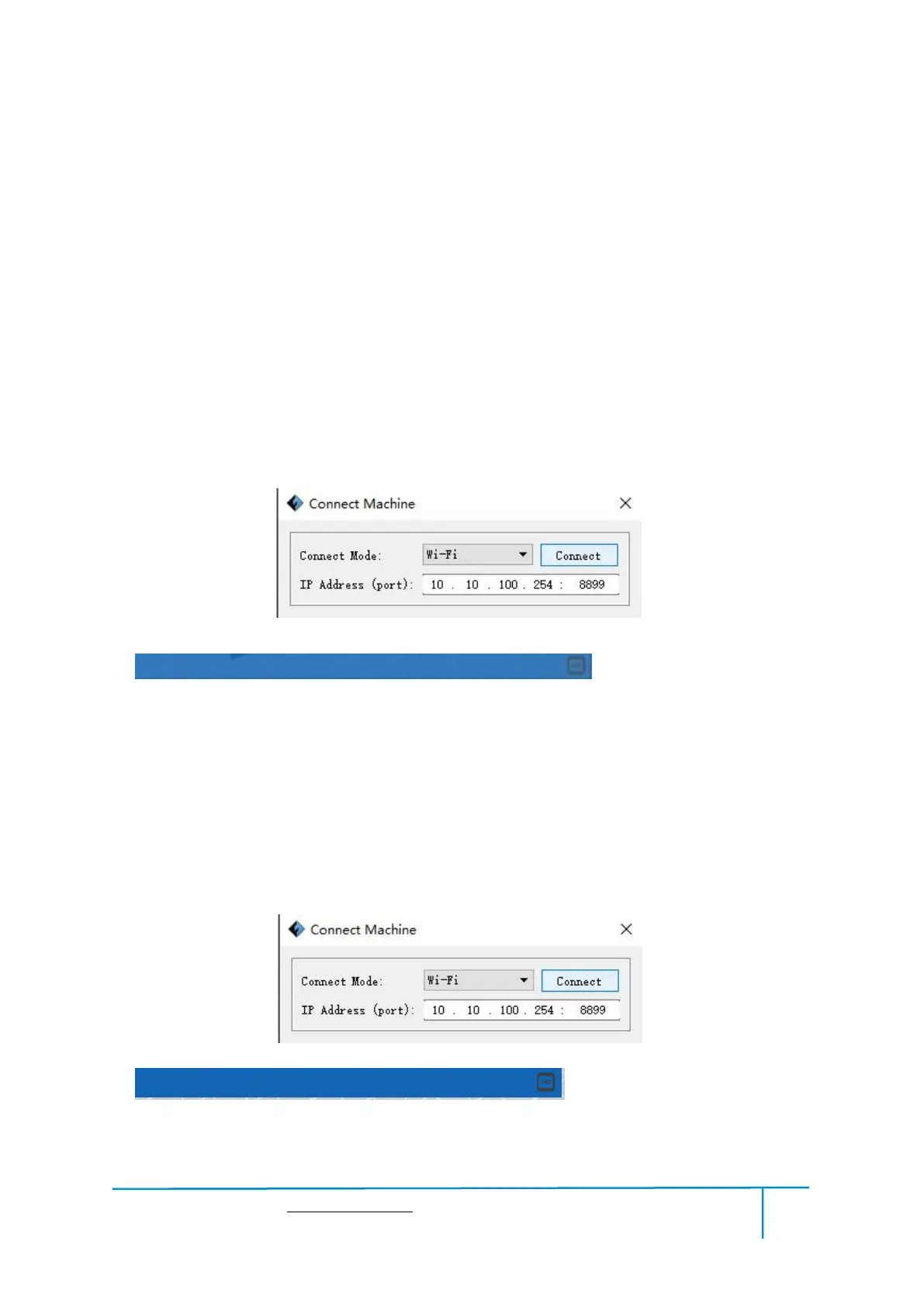
d. Click [Pr int]-[Connect Machine] on FlashPrint. Then the following dialog
box pops up. You need to select “Wi-Fi” in Connect Mode. Enter into the IP Address
shown on the interface and then click [Connect].
If successfully connected, you will see the following mark on the right corner.
②Connect Guider Ⅱ with your PC under STA mode
a. Tap [Tools]-[Setting]-[WiFi]-[WiFi ON] to turn on the WiFi of Guider II and
connect your computer and Guider II with the same WiFi signal.
b. Click [Pr int]-[Connect Machine] on FlashPrint. Then the following dialog
box pops up. You need to select “Wi-Fi” in Connect Mode. Enter into the IP Address
shown on the interface and then click [Connect].
If successfully connected, you will see the following mark on the right corner.
Disconnect Guider Ⅱ
Click [Print]--[Disconnect] to disconnect your PC and GuiderⅡ.






 To Next Page