EasyManua.ls Logo

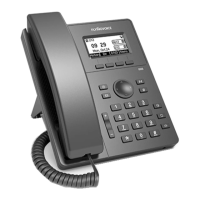
Flyingvoice P10 - Calls Screen; Icons in the Status Bar; Line Key Icons

Flyingvoice P10
47 pages
Print Icon
To Next Page IconTo Next Page
To Previous Page IconTo Previous Page
Loading...
Chapter 1 Introduction
Flyingvoice Network Technology Co., Ltd. 10
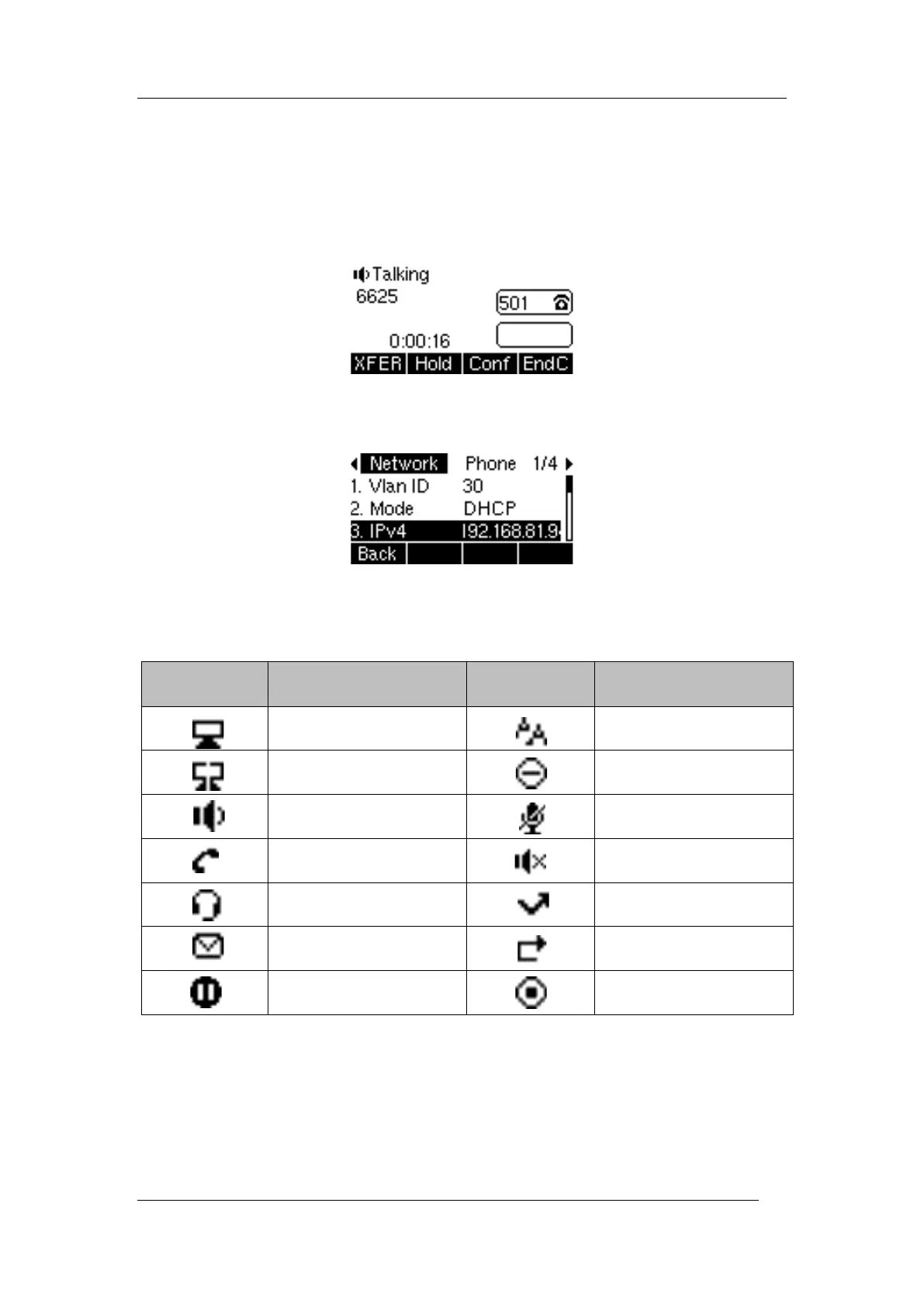
Calls Screen
All of your active and held calls are displayed on the calls screen. You can press up or down
navigation key to switch among calls.
Check with your system administrator to find out if this feature is available on the phone.
When there is an active call and a held call, the calls screen is shown below:
You can go to Menu > My Status to view Network and phone status. The phone screen is
shown below:
Icons in the Status Bar
Icons in the status bar vary by phone models.

Icon
Description
Icon
Description
Wired network is available
Auto Answer
Wired network is unreachable
Do Not Disturb (DND)
Speaker mode
Keep Mute
Handset mode
Ringer volume is 0
Headset mode
Missed Calls
Voice Mail
Call Forward
Call is on hold
Recording
Line Key Icons
Icons on the line key that vary by phone models.
Icon indicators (associated with line)

Table of Contents

Related product manuals