Chapter 3 Call Features
Flyingvoice Network Technology Co., Ltd. 18
Tip: Your system administrator can enable the live dial-pad feature, which enables your
phone to automatically dial out the phone number after some time without selecting Send.
3.1.2 Placing Multiple Calls
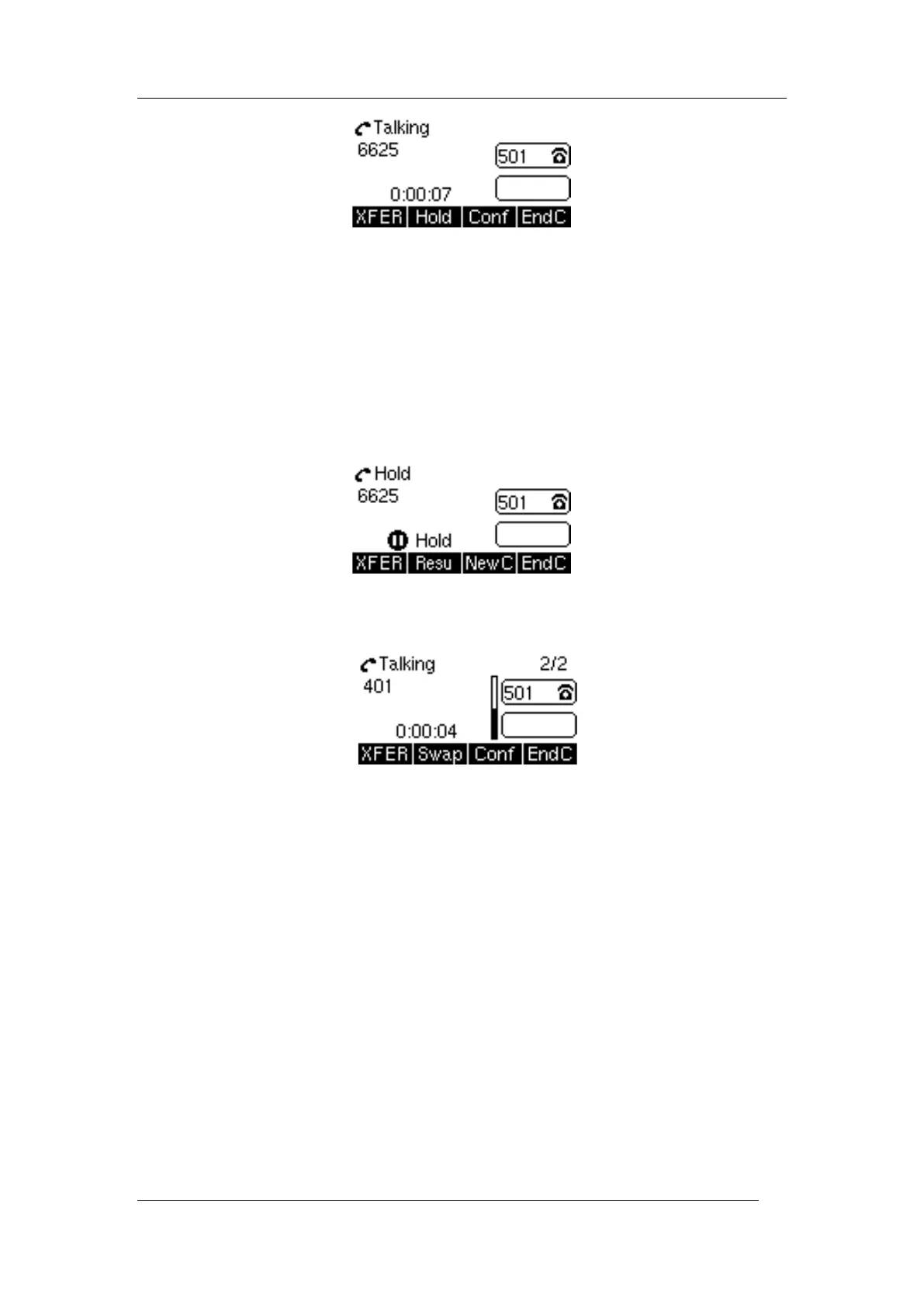
When you are in a call, you can hold your current call and place a new call.
Procedure
1. Press Hold to place the original call on hold.
2. Press NewCall, enter the desired number or select a contact.
3. Select Send.
Tip: Only one call is active at any time, and other calls are on hold. You can press Swap to
switch the call.
.
3.1.3 Placing a Call from the Call History
You can place calls to contacts from the History list, which contains the calls that were recently
placed, answered, missed, or forwarded.
Procedure
1. Press History.
The phone screen displays All/Missed/Dialled/Received call records.
2. Select the desired number, it will make the call automatically.
3.1.4 Placing a Call from the Directory
You can place a call to a contact directly from your directory.
Procedure
1. Select Directory or navigate to Menu > Directory > Local Contacts.
2. Select the desired contact group or All Contacts.


 To Next Page