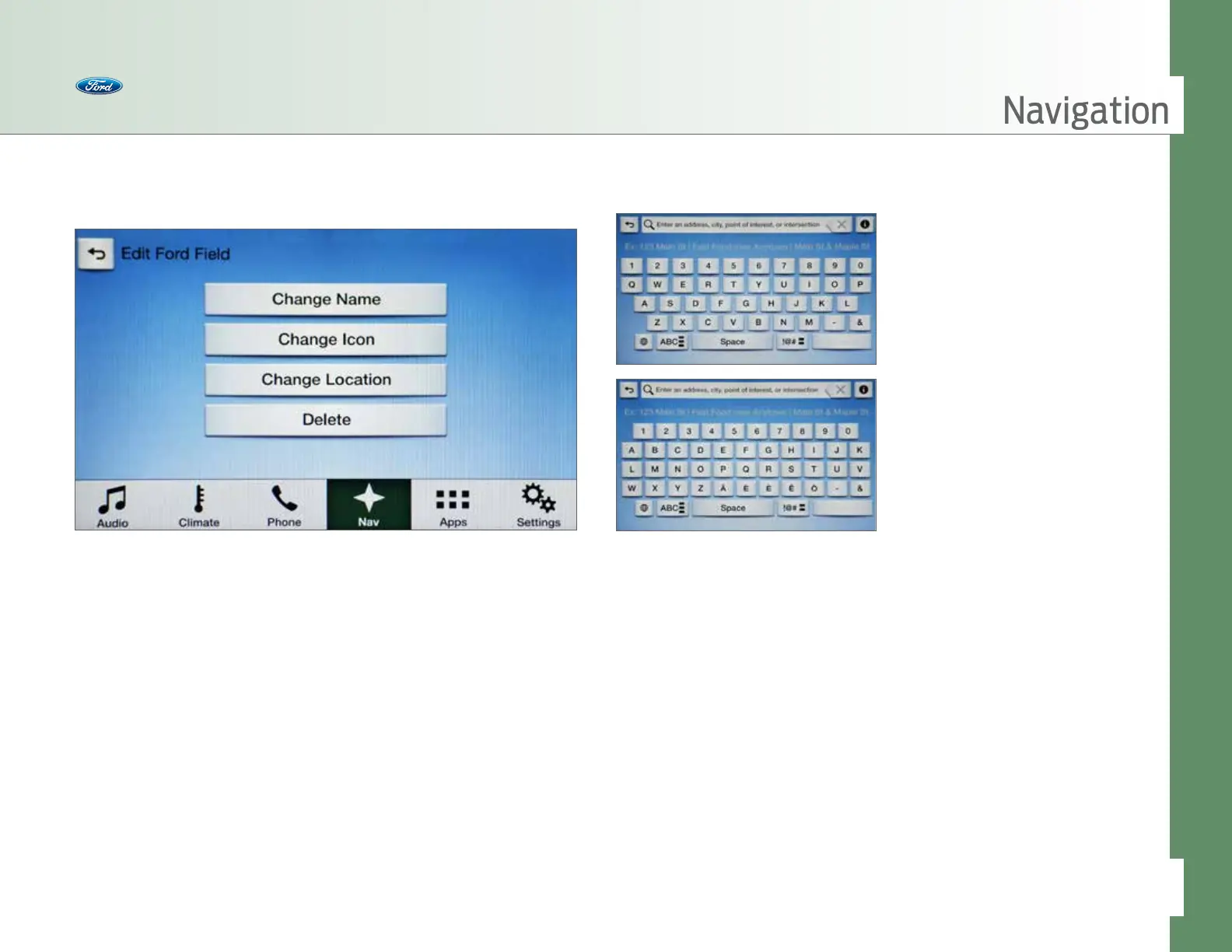
Changing the Keyboard Layout
You have flexibility to change the language or layout of the keyboard.
Just press the Globe icon on the Destination screen to change the layout
of the keyboard.
• Press Nav
• Press Destination
• Press Search
• Press the Globe > Spanish/English/French/English QWERTY
• Press Nav
• Press Destination
• Press Favorites
• Select a Favorite from the list you
want to change
• Press Edit
• Selections appear on the screen for:
– Change Name
– Change Icon
– Change Location
– Delete
Navigation
• To change the name, select it,
type in the name you want and
press Save
• To change the icon, select it and
choose one of the six available
icons: home, star, heart, circled
star, pin or thumbtack
• To change the location, select
it and pinch/swipe the map to
another location and press Save
• To delete, select it and then
press Yes
Editing a Favorite
You can make edits to the Favorites you save, such as add or change a name,
change the icon or delete. Here’s how:
49 of 76
SYNC
®
3 TECHNOLOGY INFORMATION BOOK



 To Next Page