9 of 76
SYNC
®
3 TECHNOLOGY INFORMATION BOOK
Voice Menus
A little visual cue can go a long way to improving the confidence and
accuracy of the system delivering what the driver wants. Voice menus help
guide owners in using the system.
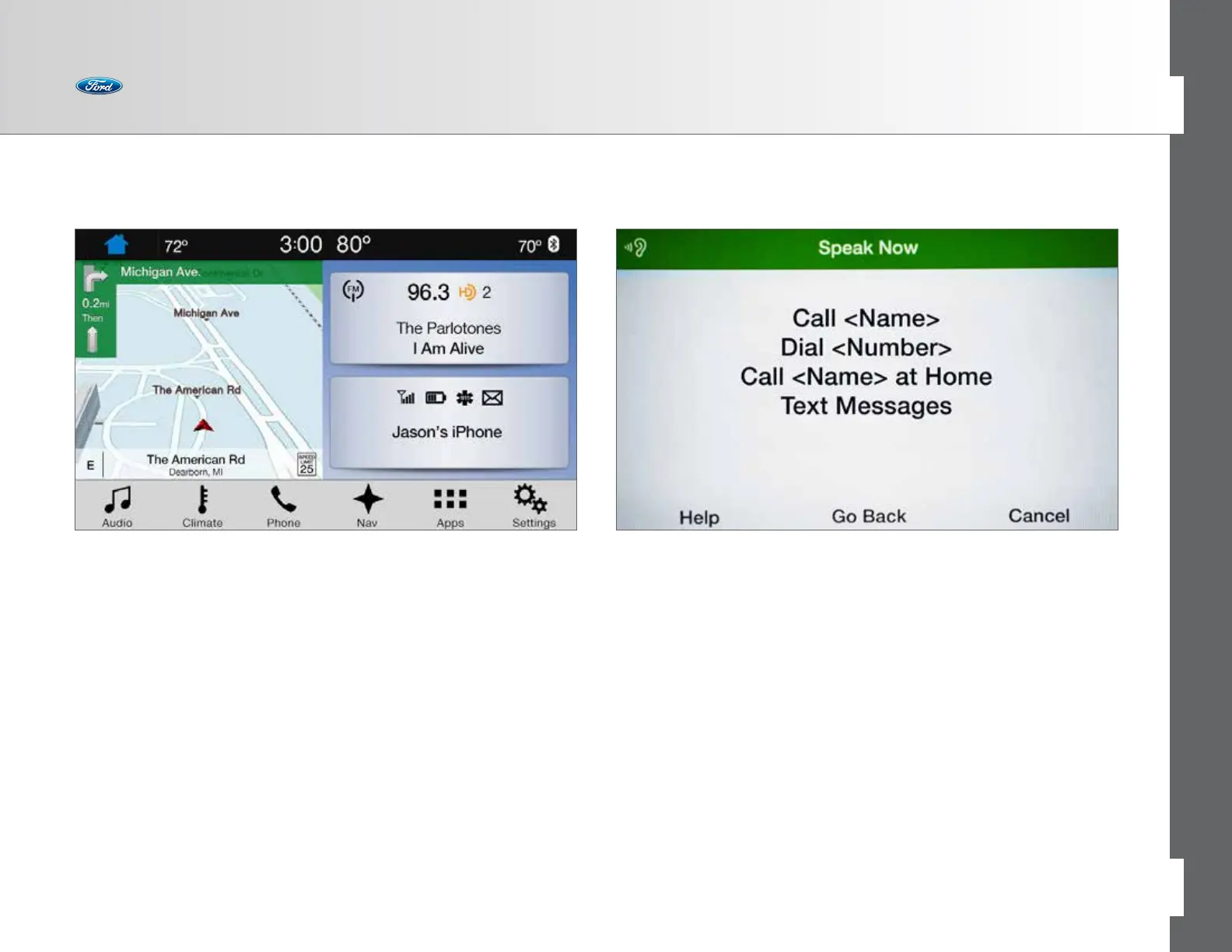
The system is capable of recognizing thousands of commands, so to help
pinpoint the right one, pop-up screens appear aer pressing the Voice
button on the steering wheel. There are many pop-up screens, each specific
to the features of the system, based on what the user says, for example:
• What Can I Say?
• Phone
• Navigation (if equipped)
• Audio
• Climate
• Mobile Apps
The most common commands are listed and a green bar appears at the top
of the screen with a “Speak Now” cue.
Using the Touch Screen
Be sure to use these tips when operating the system:
• Ensure that your hands are clean, dry and free of moisture
• Press and release on the features you want
• Notice how the system responds before continuing
• Avoid any continuously rapid pressing of the same button
• Use the capacitive touch technology for pinch and swipe on select features,
similar to a smartphone or tablet
• Clean the display with a clean, so cloth such as one used for cleaning eye-
glasses. If dirt or fingerprints are still visible, apply a small amount of alcohol
to the cloth. Do not pour/spray alcohol onto the display. Do not use detergent
or any type of solvent to clean the display
• For best results, refrain from wearing gloves while using the touch screen
Getting Familiar



 To Next Page