PBX configuration FortiGate Voice web-based manager configuration reference
FortiGate Voice Version 4.0 Administration Guide
34 01-400-112851-20100127
http://docs.fortinet.com/ • Feedback
4 If you selected Ring Group in step 3, select an extension group from the Ring Group
list.
A ring group refers to an extension group. In the Ring Group list, you should see the
extension groups you configured in “Configuring extension groups” on page 31.
5 Select OK.
Configuring PBX system options
PBX system options allow you to configure an extension range for your company’s phone
system, enter an access code for accessing voicemail messages, and a maximum
voicemail duration setting.
In the web-based manager, you can only configure the voicemail access code and the
maximum voicemail duration time. If you want to configure an extension range that is not
the default range (_1XX), use the CLI. For more information, see “FortiGate Voice VoIP,
PBX, and PSTN CLI Reference” on page 37.
To configure PBX system options
1 Go to PBX > Config > System.
2 In the Voicemail Access field, enter the access code number that you want employees
to use when accessing their voicemail.
3 In Max Voicemail Duration, enter the limit of the voicemail length in seconds.
4 For example, to allow a voicemail length of two minutes, enter 120 seconds.
5 Select Apply.
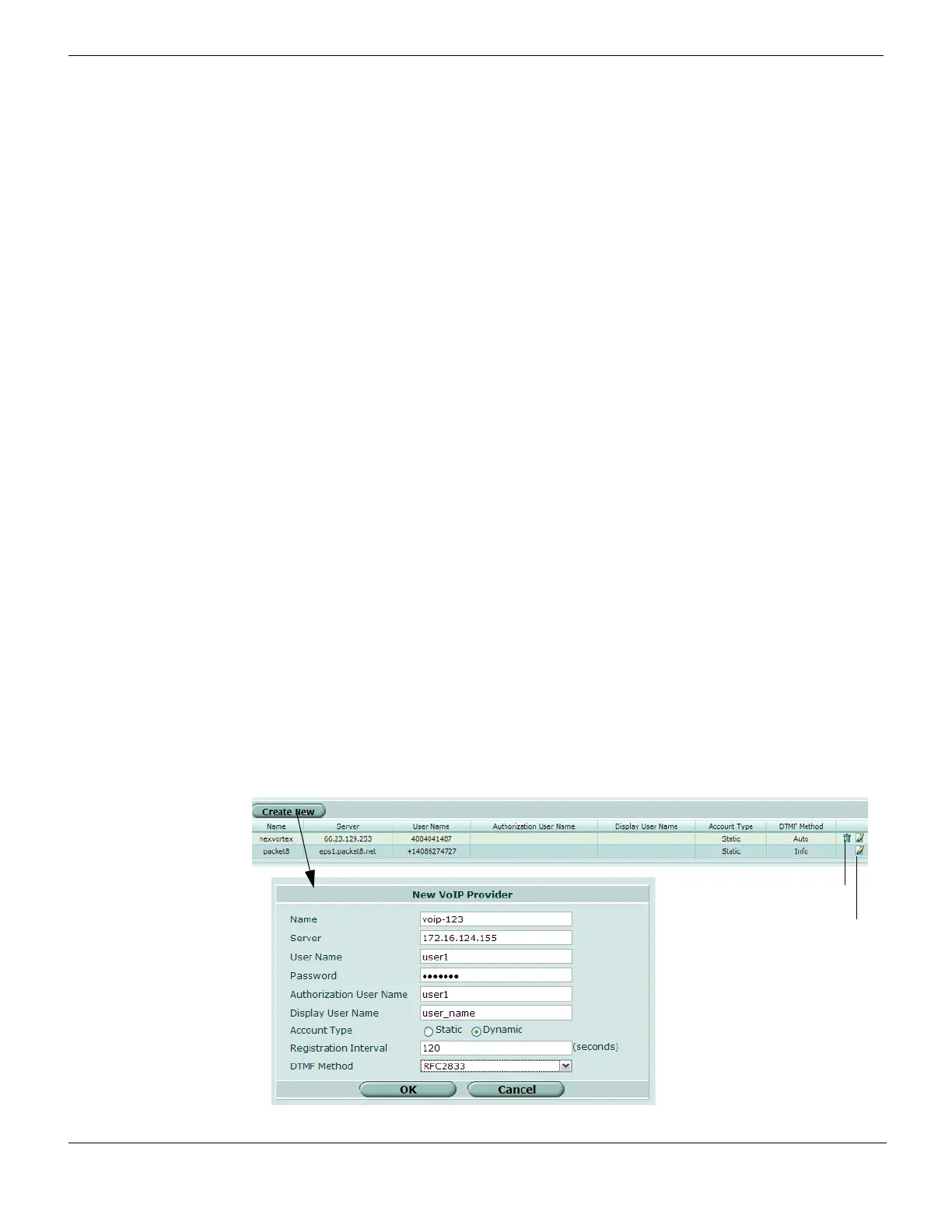
Configuring VoIP providers
You can configure multiple VoIP providers for your PBX specifications.
To configure VoIP providers, go to PBX > Config > VoIP Provider, select Create New,
configure the settings and then select OK.
Figure 9: VoIP Provider
Check Voicemail Accesses voicemail messages from a voicemail inbox.
Go to Company
Directory
Allows the caller to go directly to the company’s phone directory.



 To Next Page