FortiGate Voice web-based manager configuration reference PBX configuration
FortiGate Voice Version 4.0 Administration Guide
01-400-112851-20100127 31
http://docs.fortinet.com/ • Feedback
Configuring extension groups
Extension groups are a group of extensions that can be called using one number. The
extension group can be used to call all the extensions in the group at the same time or to
call the extensions one at a time until someone answers.
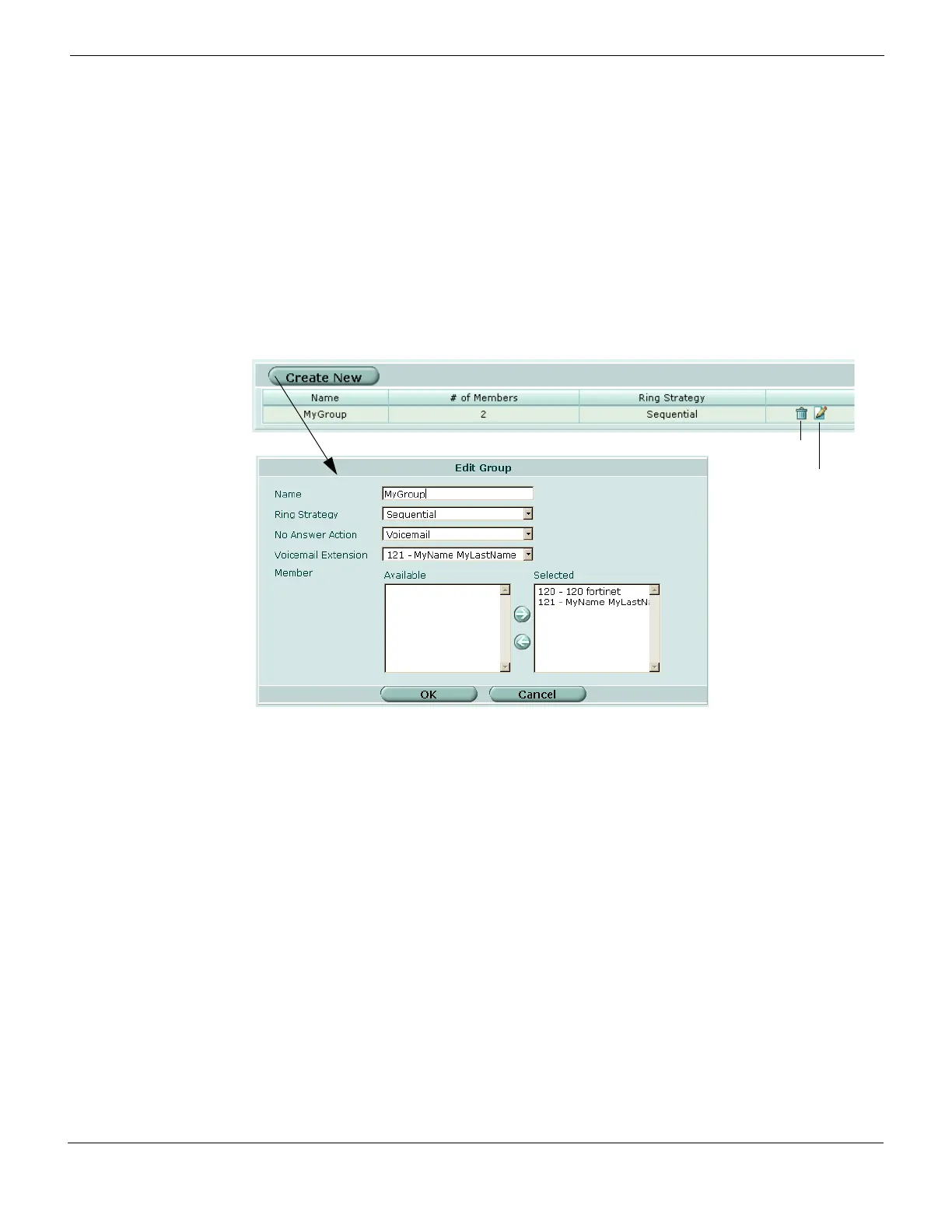
To configure an extension group, go to PBX > Extension > Group, select Create New,
enter the information, and then select OK.
Figure 7: Configuring extension groups
Auto Delete Select to automatically delete the message.
Maximum Message Enter a number for the maximum amount of messages that can be stored
in the voicemail inbox before automatically deleting those messages.
General extension group settings
Create New Select to configure an extension group.
Name The name of the extension group.
# of Members The number of extensions associated with the extension group.
Ring Strategy The type of ring strategy associated with the extension group.
Delete icon Select to delete an extension group.
Edit icon Select to change the extension group’s settings.
Extension group configuration settings
Name Enter a name for the extension group.
Ring Strategy Select a type from the drop-down list. You can choose either Sequential or
Ring All.
No Answer Action Select the action to take when there is no answer for the incoming caller. You
can select Voicemail, which routes the caller to voicemail, IVR, or Hangup. If
you select Voicemail, the Voicemail Extension list appears and you need to
select the voicemail extension number.



 To Next Page