w
w
w
w
w
w
.
.
f
f
o
o
s
s
c
c
a
a
m
m
.
.
c
c
o
o
m
m
14
S
S
h
h
e
e
n
n
z
z
h
h
e
e
n
n
F
F
o
o
s
s
c
c
a
a
m
m
I
I
n
n
t
t
e
e
l
l
l
l
i
i
g
g
e
e
n
n
t
t
T
T
e
e
c
c
h
h
n
n
o
o
l
l
o
o
g
g
y
y
C
C
o
o
.
.
,
,
L
L
i
i
m
m
i
i
t
t
e
e
d
d
T
T
e
e
l
l
:
:
8
8
6
6
7
7
5
5
5
5
2
2
6
6
7
7
4
4
5
5
6
6
6
6
8
8
F
F
a
a
x
x
:
:
8
8
6
6
7
7
5
5
5
5
2
2
6
6
7
7
4
4
5
5
1
1
6
6
8
8
14
Onscreen Mouse Control
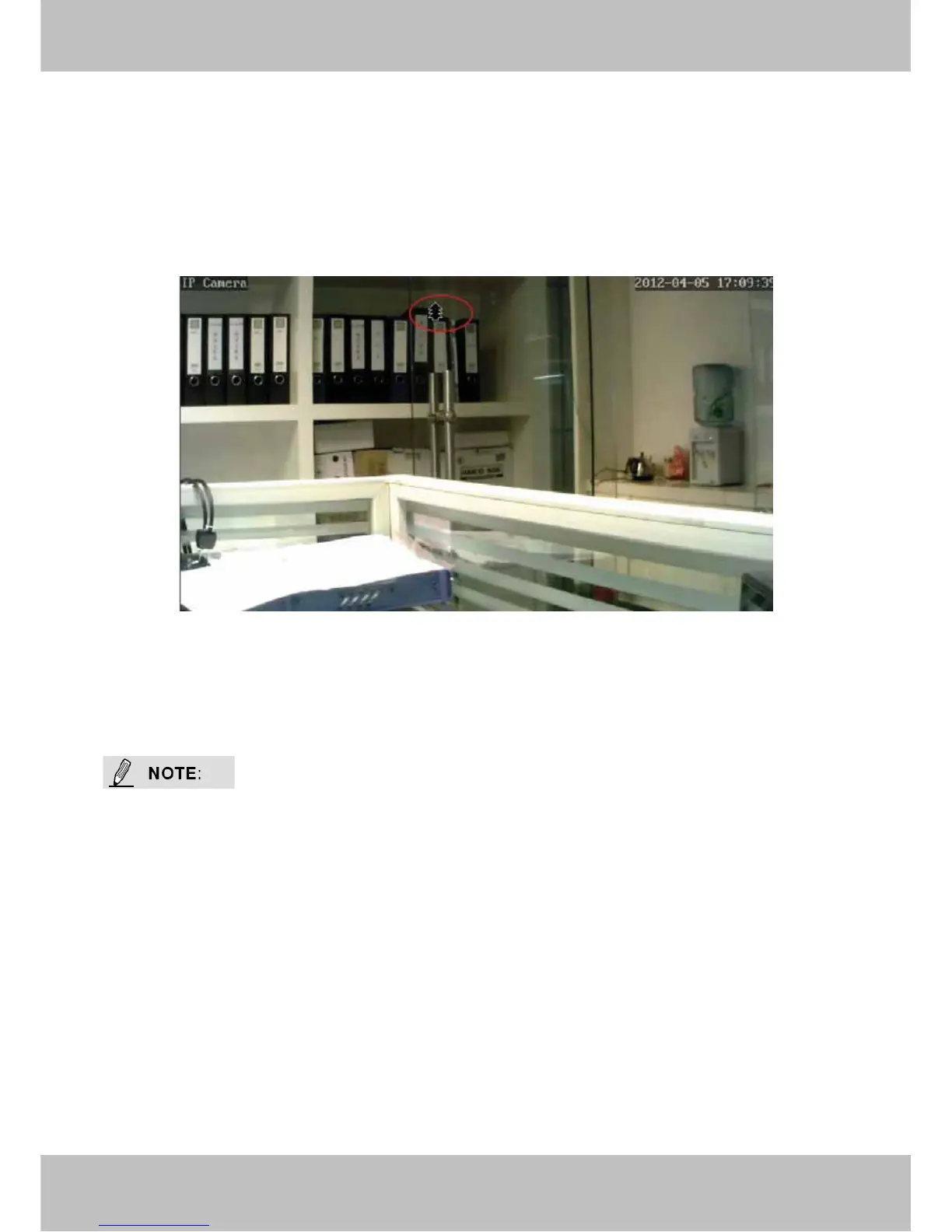
Click on a place on the screen to indicate the camera move direction you prefer. For example,
you can click on the upper-right corner of the screen, and the cameras lens will move toward the
upper-right direction.
When the icon has three arrows, the speed of the rotation is fastest. And when the icon has one
arrow, the speed is lowest.
Figure 2.9
Put the mouse at the center of the living video, you will see the icon of the magnifying glass
(Figure 2.10). Press the left mouse and you can use the optical zoom function.
The camera doesn’t support this function because the lens without the optical zoom.



 To Next Page