See section 4.3.3 User Manual.
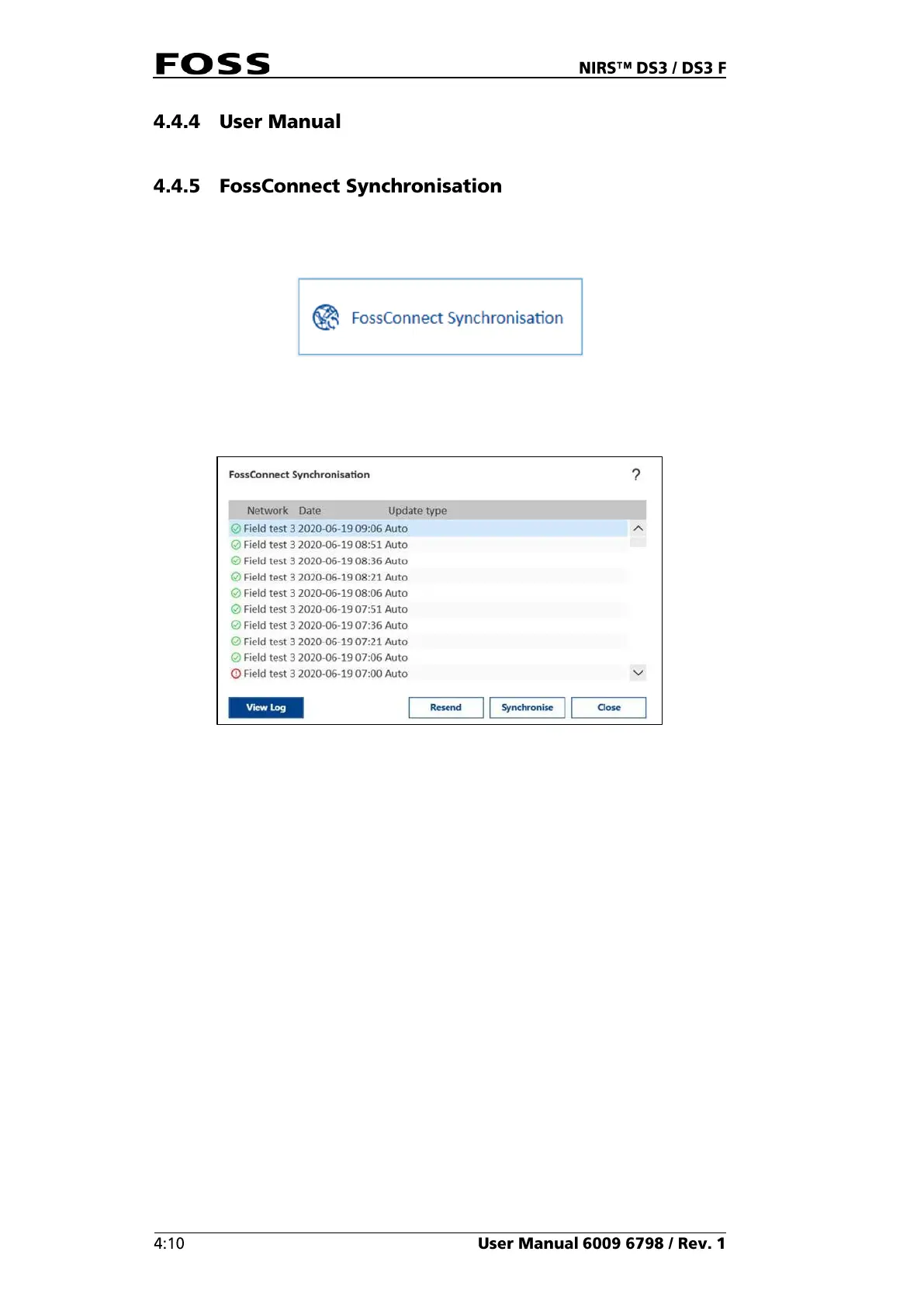
The FossConnect Synchronisation window gives an overview of the latest
synchronisations where the instrument has exchanged data with the server.
Fig. 46
To view the content of a session, select it and click View Log.
Fig. 47 FossConnect Synchronisation window
This opens the View Log dialogue. This shows what was done during the last
session.
Click Synchronise to perform a manual synchronisation which will upload all
relevant data to the FossConnect server, download all available updates from the
FossConnect server and automatically activate the updates on the local instrument.
Automatic Synchronisations are performed at certain intervals (using settings in
FossManager) and they will upload all relevant data to the FossConnect Server.
Automatic updates are performed at certain intervals (using settings in
FossManager) and they will download all available updates from the FossConnect
server. These updates will not be installed automatically, but the operator is alerted
that new updates are available and is given the options Upgrade now or Snooze.



 To Next Page
 Loading...