GETTING STARTED
9
Getting started
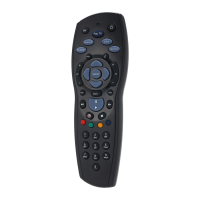
v Using the FOXTEL remote control with the
FOXTEL Guide
Whichever section of the FOXTEL Guide you are looking at, you
always use the remote control in the same way.
u To display any section of the FOXTEL Guide, press the
corresponding button on the remote control, for example,
to display ON DEMAND, press on demand.
u Use the arrows to move the highlight around the screen,
then to choose the highlighted item, press select.
u On many of the FOXTEL Guide screens, you use the colour
buttons to choose options or change the display. When a
colour button is displayed next to an option, press the same
colour button on the remote control to choose that option.
u Press the number buttons to enter numbers on the screen.
You can also use the number buttons as a short-cut,
whenever a numbered list is shown.
u You can use the number buttons to write the letters and
symbols marked on the buttons onto the screen. Press the
button once for the first letter, and again for the next letter,
until the letter you want is displayed (similar to sending
text messages with your mobile phone).
u To see information about a highlighted programme, press
i
.
u To remove any screen, and go back to the previous FOXTEL
Guide screen, press back.
u When full screens of listings are displayed, you can press
ch + and ch - to ‘page up’ and ‘page down’ a full screen of
listings.
u To return to the digital channel you were last watching,
press FOXTEL.


 To Next Page