9
NT530 Plus User’s Manual_English_V1.03
Do not use solvents such as alcohol to clean keypad or display. Use a mild nonabrasive detergent and a soft
cotton cloth.
2.2 Accessory Descriptions
This section lists the accessories that go with the scanner. If you find any of the following items missing from
your package, contact your local dealer for assistance.
1 Quick Start Guide - provides brief introduction of how to use the scanner.
2 User’s Guide - provides operation instructions for the usage of the scanner.
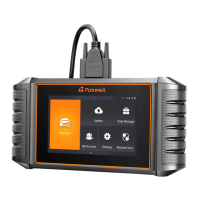
3 Diagnostic Cable - provides connection between the scanner and a vehicle.
4 USB Cable - provides connection between the scanner and a computer to update and print data.
5 Warranty Card - A warranty card is required if you need any repair or replacement from us.
6 Nylon Carry Pouch - stores the scanner and its accessories.
2.3 Technical Specifications
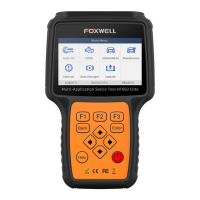
Display: Backlit, 2.8’’ TFT color display
Working Temperature: 0 to 60 ℃ (32 to 140℉)
Storage Temperature: -20 to 70℃ (-4 to 158℉)
Power Supply: 8-18V vehicle power and 3.3V USB power
Dimensions: (L*W*H): 200*100*38mm
Weight: 0.6 Kg
3 Getting Started
This section describes how to provide power to the scanner, provides brief introductions of applications loaded
on the scanner and display screen layout and illustrates how to input text and numbers with the scan tool.
3.1 Providing Power to Scanner
Before using the scanner, make sure to provide power to the scanner.
The unit operates on any of the following sources:
● 12-volt vehicle power
● USB connection to computer
3.1.1 Connecting to Vehicle Power
The scanner normally powers on whenever it is connected to the data link connector (DLC).
To connect to vehicle power:
1. Locate the data link connector (DLC). The DLC is generally located under the dash on the driver side of the
vehicle.
2. Attached the Diagnostic cable to the scanner and tighten the captive screws to ensure good connection.
3. Connect a correct adapter to the data cable according to the vehicle being serviced and plug it into the
vehicle DLC.
4. Switch the ignition key to the ON position.
5. The scanner automatically boots up.
IMPORTANT
Never try to provide power for the scan tool from USB connection when the scan tool is communicating with a
vehicle.
3.1.2 Connecting to Computer with USB Cable
The scan tool also receives power through the USB port when it is connected to a computer for software
updates and printing of data.



 To Next Page