10
T1000 TPMS Service Tool Manual_English_V1.01
The TPMS Service Tool can also be charged through the USB port.
To charge via USB cable
1.Insert the small end of the USB cable to the USB port at the right side of the TPMS Service
Tool and the large end to a computer.
3.3 Application Overview
When the TPMS Service Tool boots up, the Main Menu displays. This screen shows all applications
loaded on the unit.
The following applications are preloaded into the TPMS Service Tool
●
TPMS – leads to screens for activating and proragmming TPM sensors and sensor learning
process.
●
RKE&RF – leads to screens for checking RF Remote Keyless Entry (key FOB).
● Latest Test – leads to screens for access the last tested sensor data.
● Update – leads to screen for updating the scanner.
● About – leads to screen of information about your trigger tool.
● Setting – leads to screens for adjusting default settings to meet your own preference.
Figure 3-1 Sample Home Screen
3.4 Tool Symbols and Icons
This section provides a brief introduction of symbols and icons of tool display.
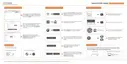
Indicates internal battery volume.
Indicates the TPMS tool is sending signals to
the tire sensor for activation and test.
Indicates battery charging.



 To Next Page
 Loading...