39
T1000 TPMS Service Tool Manual_English_V1.01
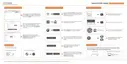
Figure 9-20 Sample Sign in FoxAssist for T1000 Screen
4. You are lead to Download tap after you sign in, please choose the Update icon and press the
Enter Key on the scanner, then all updates applicable to your scanner display.
Figure 9-21 Sample Download Screen
5. Click the check box(es) in front of the software(s) you wish to update and then click the Update
button on the top of the software(s) to download.
6. When Upgrade button is clicked, it begins to download. And you can check the Current Status.
If the Current Status shows Downloading, please do not close the update application.
7. When all the items are updated, an “All software downloads are successfully installed!”
message displays. Please click OK to confirm.
NOTE
If “Update Failed” dialog comes up, it indicates that the software updates failed. Please check the
network connection. If the problem still exists, please contact support@foxwelltech.com or your
local dealer for assistance.
8. Please click Setting to change the update tool language.
Figure 9-22 Sample FoxAssist for T1000 Setting Screen



 To Previous Page
 Loading...