© 2023 Flanders Scientic, Inc.
27
Return to Table of Contents
Video Menu
Main Menu Video
Function SDI Format Auto
Real Time Scopes 3G Level B Stream 1
Scopes & Audio Meters DVI / DP Pixel Format Full RGB
Video PAP Mode PAP
Audio PAP Input SDI 2
Marker Checkerboard Size 2 Pixels
Alarm SD Enhancement Off
OSD Anamorphic Desqueeze 2.0x
GPI Signal Mode Auto
Color Management I -> P Mode Motion Compensated
System Sharpness Level 0
System Status Fast Mode Standard Mode
Support Flicker Free Mode Off
Part Display Off
SDI Format
FSI Monitors are capable of detecting the payload ID contained in an SDI signal. However, some sources or upstream
equipment may not generate or pass payload ID. For sources lacking proper Payload ID you may override the SDI Format
auto detect function and manually select the appropriate format. It may be necessary to force the monitor to re-sync to a
signal when changing formats at the source even when set to Auto. You can force the monitor to re-sync by either reselecting
Auto from the SDI Format menu, selecting the appropriate format manually from the SDI Format Menu, or simply toggling
to another input and back to the input in use. Please note that on monitors with a selectable color space option that XYZ
signals will be mapped to the color space selected on the Color Management menu.
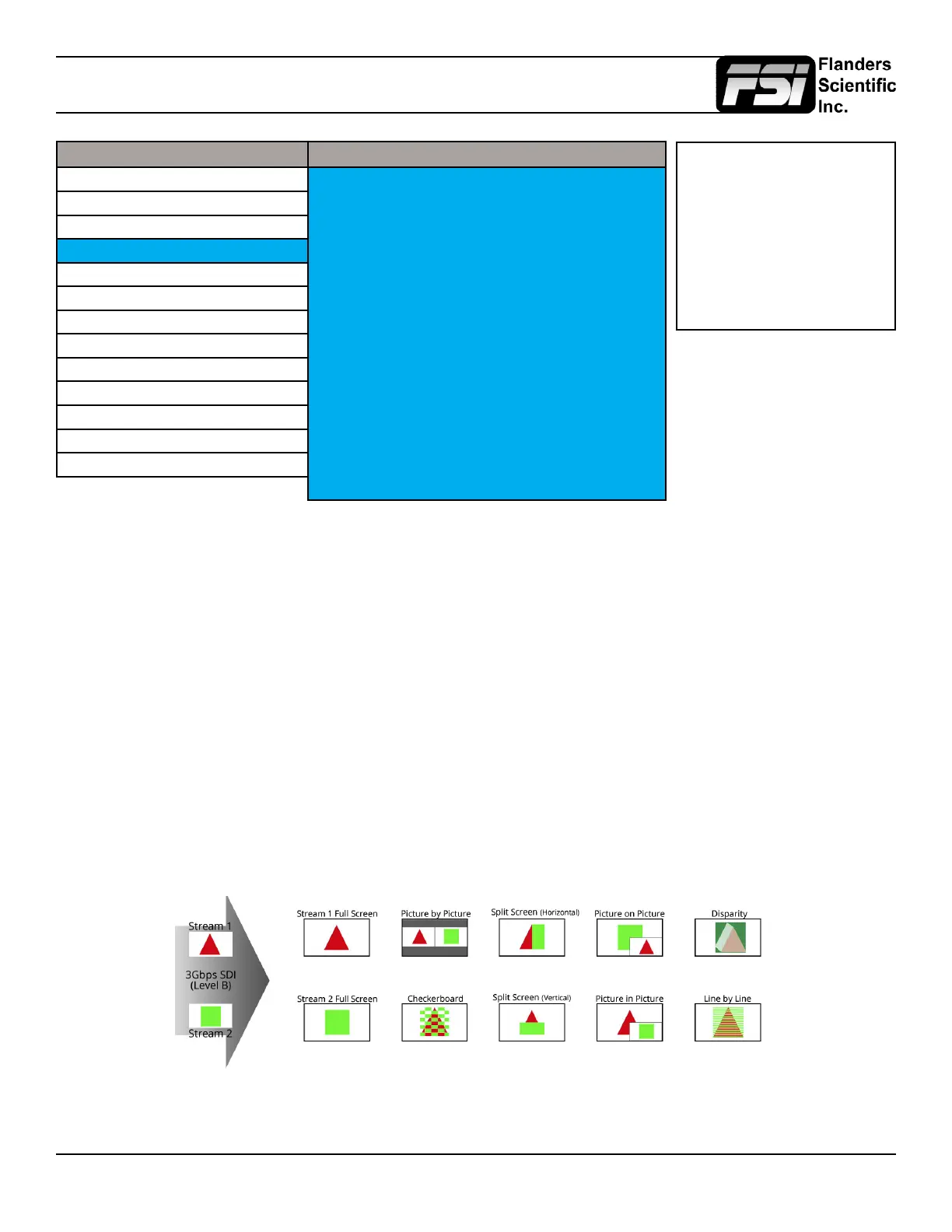
3G Level B
When monitoring a 3Gbps SDI Level B signal comprised of two distinct 1.5Gbps HD-SDI signals that have been muxed
together you can use this 3G Level B selection to select different monitoring options including: Stream 1, Stream 2, PAP, PIP,
POP, Vertical Split, Horizontal Split, Overlay Mode. Please note that Level B 3Gbps SDI requires that both 1.5Gbps signals
share the same frame rate and resolution and that Link A and Link B are genlocked. For signals using SMPTE 425M-B
image format mapping to transport SMPTE 372M formatted Dual Link information (4:4:4) YCbCr or RGB / 1080p50/60) the
Overlay Mode should be used to view the combined LinkA and LinkB data as a single video signal.
Menus longer than the Main
Menu including Video, Color
Management, and the System
menu will not fully display.
These menus will scroll.
Use the Up and Down keys to
scroll up and down a menu.



 To Next Page