© 2023 Flanders Scientic, Inc.
31
Return to Table of Contents
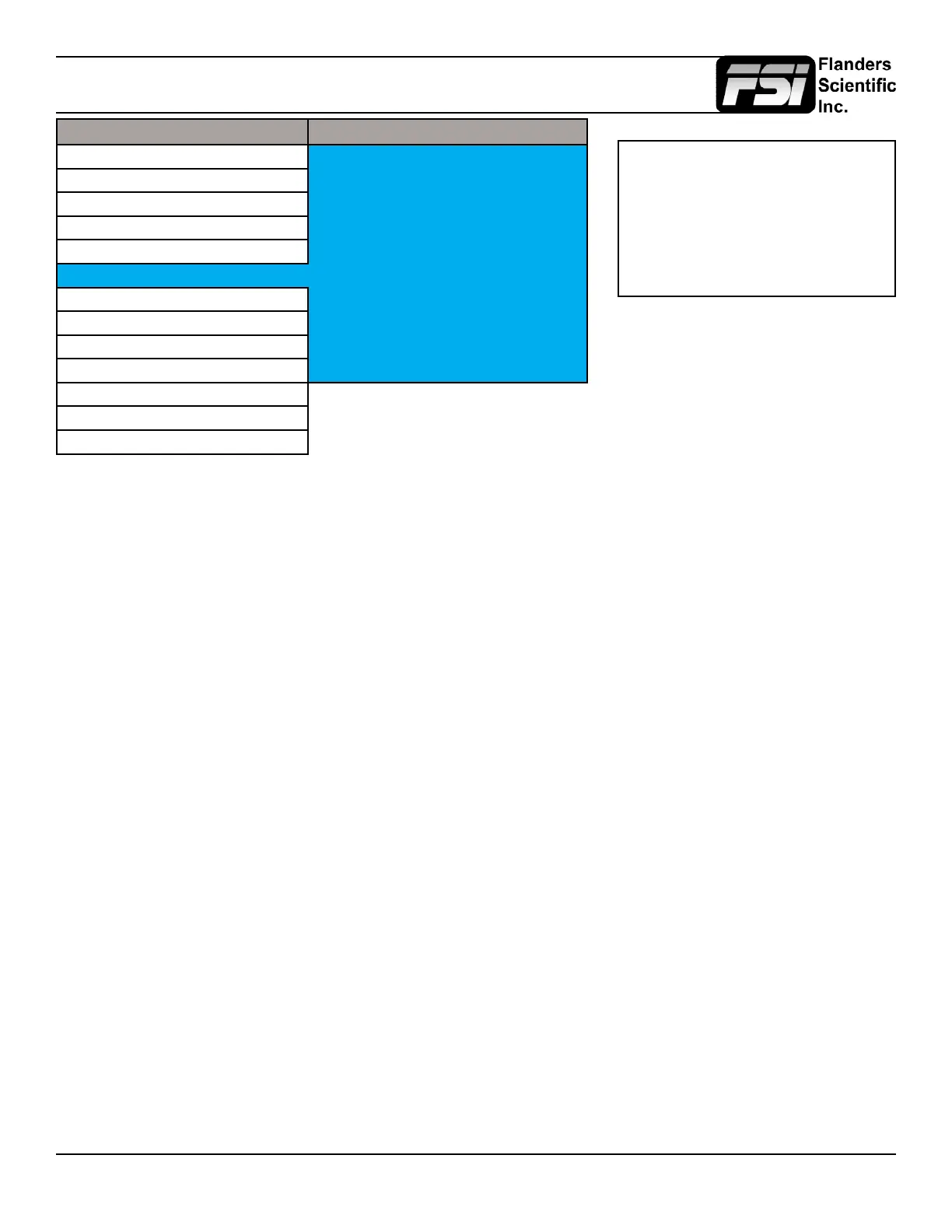
Marker Menu
Main Menu Marker
Function Marker Select Prole 1
Real Time Scopes Graticules Off
Scopes & Audio Meters Graticules Info On
Video Area Marker 4:3
Audio Safety Marker 90%
Marker Center Marker On
Alarm Marker Color Gray
OSD Marker Background Normal
GPI Safety In Area On
Color Management Active Boundary Off
System
System Status
Support
Marker Select
Toggles between three Marker Proles. Each prole stores all marker preferences and can be recalled from the function
menu by assigning a function button to a specic marker prole.
Graticules & Graticules Info
Toggles Custom Marker Feature On/Off. Use rotary knobs to adjust line positioning. Set Graticules Info to Off to clear line
position and span size readouts.
Area Marker
Use the Area Marker function to select what type of marker is displayed when the marker function is active. The marker
selections available from this option include most commonly used markers and more complex user designed custom
markers. Area Markers and Safety Markers may be displayed simultaneously provided that the Marker Background function
(described below) is set to Normal.
Safety Marker
Use the Safety Marker function to toggle the size, in percentage, of the safety marker displayed. This option can be used by
itself or in conjunction with the Area Marker function provided that the Marker Background function (described below) is set
to Normal. The Safety Marker may be displayed relative to the incoming source or relative to the Area Marker by toggling
the Safety in Area option on or off from the Marker Menu.
Center Marker
Toggles whether the center marker (cross-hair) is displayed when the marker is activated.
Marker Color
This setting allows you to select the color of the marker being used. This can be especially useful when one color dominates
the screen and an easily visible high contrast marker is desired.
Marker Background
The Marker Background setting can be used to toggle how the area that lies outside of the Area Marker or Safety Marker
boundaries is represented. You can select from Normal, Transparent, or Solid.
Safety in Area
Toggles whether Safety Marker is shown relative to incoming source or relative to the Area Marker (e.g. 4:3)
Active Boundary
When On, the Active Boundary marker will highlight the edges of any active video area not directly bordering the monitor’s
bezel. This is useful for detecting missing lines in the active video area, especially on 1920x1200 resolution displays.
NOTE: The Marker Menu only sets your
marker preferences. To toggle the on-
screen display of your congured marker
assign the Marker function to one of the
function keys. See the Function Menu
section of this manual for more details.



 To Next Page