© 2023 Flanders Scientic, Inc.
52
Return to Table of Contents
Appendix B - Calibration LUTs (DM)
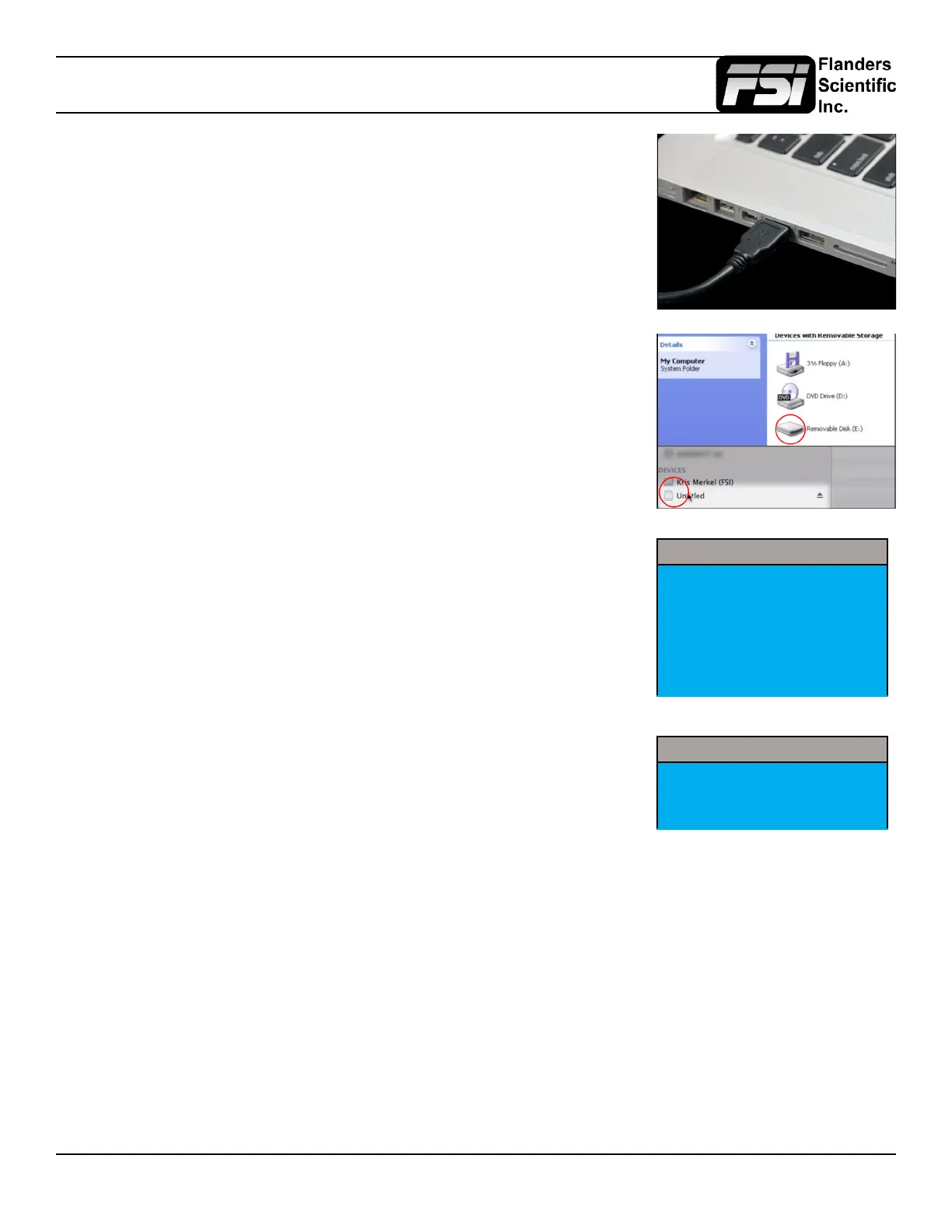
Connect the FSI update cable (USB for DM Series) that came with your monitor to an
available USB port on your computer and the back of your monitor.
After a short time, the computer should recognize the FSI monitor as a mass storage
device, viewable in Mac’s Finder or PC’s My Computer.
Drag and drop the user1.cfe, user2.cfe, and user3.cfe le(s) you created to the monitor.
All 3 LUTs can be transfered at one time.
Once the le has nished transferring, on the monitor go to:
Menu > Color Management > Update LUT
Press ENTER to begin the process, and conrm with Yes when the monitor prompts
you.
Color Management
Luminance 100
LUT Bypass 3D LUT
Update LUT
Red Gain 50
Green Gain 50
Blue Gain 50
Once the monitor has rebooted, set LUT Bypass to None.
Menu > Color Management > LUT Bypass
Custom LUTs can be accessed from the Color Management menu by selecting Color
Space: USER1, USER2, USER3. Press ENTER to conrm your selection.
Color Management
Luminance 100
LUT Bypass None
Update LUT



 To Next Page