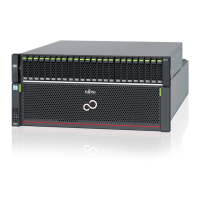
1 Press the Power switch of the controller enclosure.
Controller enclosure
Power switch
The POWER LED ( ) on the controller enclosure and the POWER LEDs ( ) on the drive enclosures
are turned on.
2 After approximately three minutes (after approximately six minutes in a Unified configuration), check
that the READY LED (
) of the controller enclosure is lit up.
Controller enclosure
Drive enclosure
3.2 ETERNUS Web GUI Startup
Start up ETERNUS Web GUI via the Web browser of the connected terminal.
If the settings of the Web browser are incorrect, ETERNUS Web GUI may not be connected. For details on
these settings, refer to "Configuration Guide (Web GUI)".
1 Open the Web browser on the terminal.
2 Enter the IP address that is set in the ETERNUS DX in the address bar of the Web browser.
The login screen for ETERNUS Web GUI appears.
3 To change the language, click the [Option] button and select [English] or [Japanese] in [Language:].
4 Enter the User ID and Password.
User ID: root
Chapter 3
General Settings
3.2 ETERNUS Web GUI Startup
39
FUJITSU Storage ETERNUS DX500 S3/DX600 S3 Disk storage system Configuration Guide (Basic)
Copyright 2014 FUJITSU LIMITED
P3AM-7732-05ENZ0



 To Next Page
 Loading...