1. INITIAL SETTING AND ADJUSTMENT
1-70
1.10.2 How to save the configuration data to a medium
You can save the configuration data to a medium (PC, USB memory, etc.). Set the
medium and then do as follows:
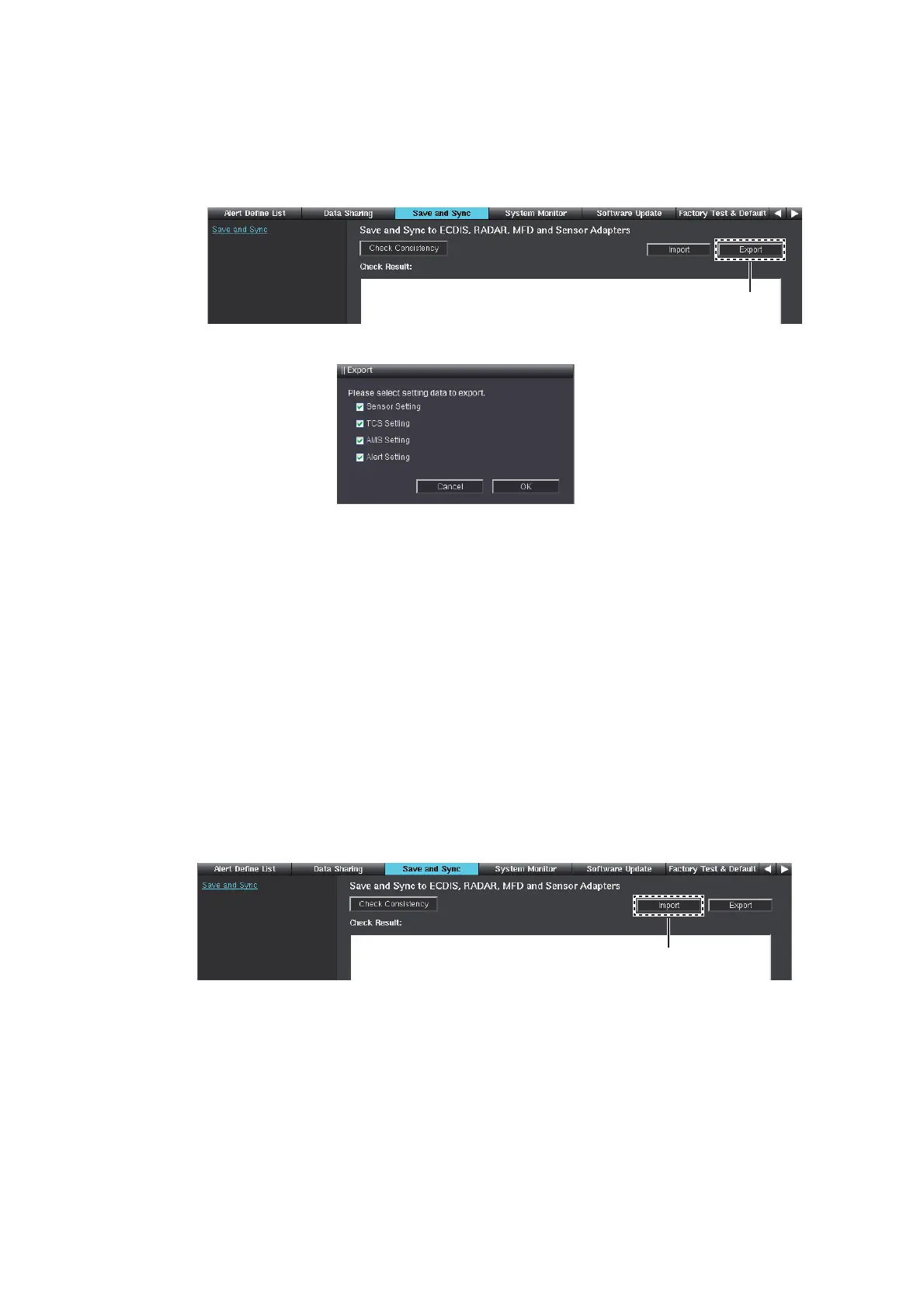
1. Click [Export] at the upper right of the [Save and Sync] menu.
The window shown below appears.
2. Select the configuration data type that you want to save, and then click [OK].
• [Sensor Setting]: Configuration data on the [Own Ship Setting], [Installation Pa-
rameters] and [CCRS] menu.
• [TCS Setting]: Configuration data on the [TCS] menu (ECDIS only).
• [AMS Setting]: Configuration data on the [AMS] menu.
• [Alert Setting]: Configuration data on the [Alert Define List] menu.
3. Select where to save the configuration data.
The file name "SettingFiles.tar" is created.
1.10.3 How to load the configuration data
You can load the configuration data from a medium (PC, USB memory, etc.). Set the
medium and then do as follows:
1. Click [Import] at the upper right of the [Save and Sync] menu.
2. Select the configuration data file ("SettingFiles.tar").
3. Select the configuration data type that you want to load, and then click [OK].
• [Sensor Setting]: Configuration data on the [Own Ship Setting], [Installation Pa-
rameters] and [CCRS] menu.
• [TCS Setting]: Configuration data on the [TCS] menu (ECDIS only).
• [AMS Setting]: Configuration data on the [AMS] menu.
• [Alert Setting]: Configuration data on the [Alert Define List] menu.
4. After loading the data, perform the consistency check and save the configuration
data on the [Save and Sync] menu.
Click [Import].



 To Next Page