43
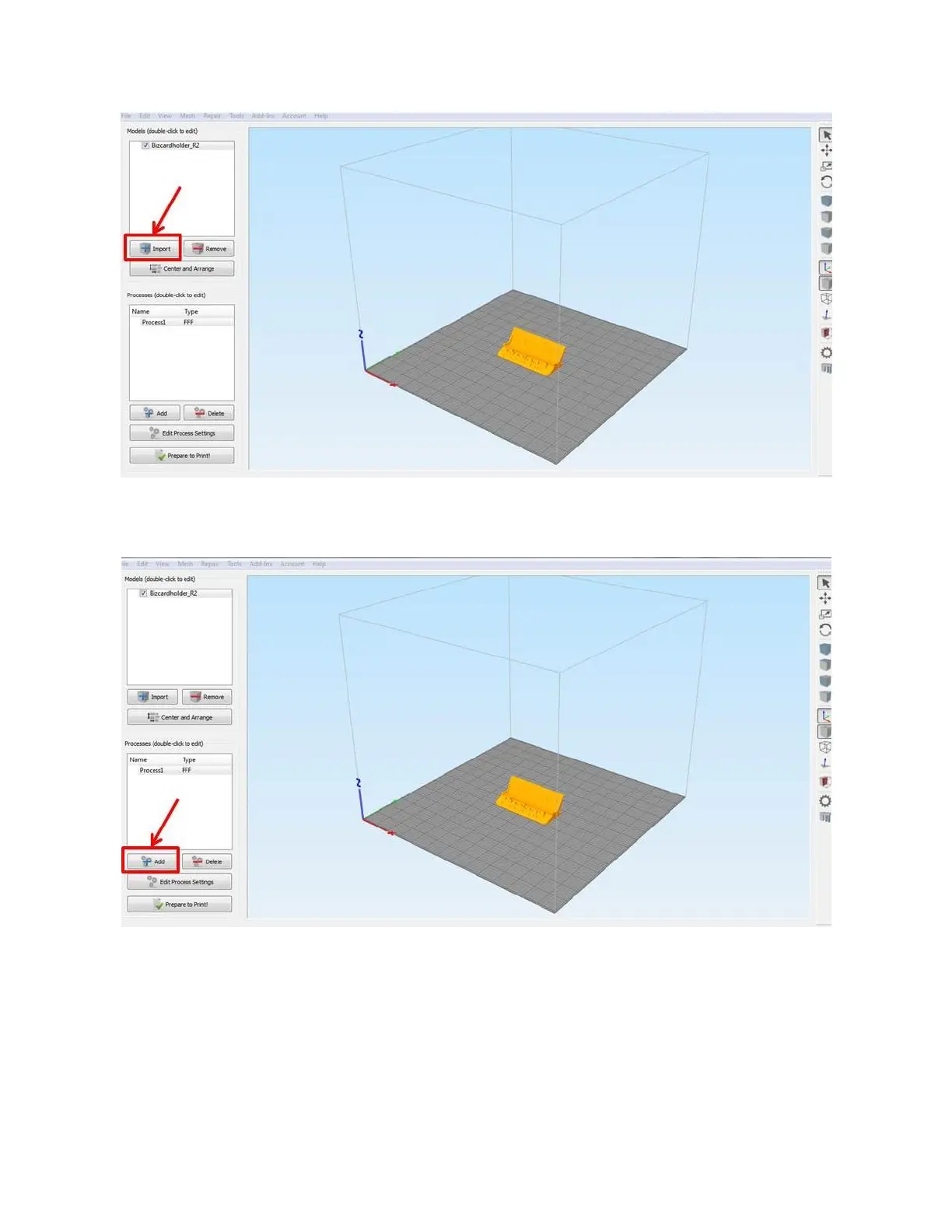
Next, add a Process and make sure the profile you’ve selected matches the material you have loaded, or will load,
into your printer. Now is also the time to make any changes to the settings if you need to.
Next, click the “Prepare to Print” button. Simplify3D will slice your model and give you a preview of the toolpath
(how it’s going to build the part). You can use the sliders at the bottom and the visualization tools on the left side
to preview the toolpath and verify it looks correct before printing.


 To Next Page