27
Models List: Shows a list of all models currently on the build plate. You can import more than 1 model at once to
print them all simultaneously.
“Center & Arrange” button: Click this to automatically arrange the parts on the build plate so that they don’t
overlap. Note that this does not rotate any models to the best printing orientation – that’s up to you.
Processes Section: This is where you define how you want the part to be printed (material and other settings). For
most applications you should only have 1 process in this list at a time.
“Prepare to Print” button: Clicking this will “slice” your model with the settings defined in your process and
provide you with a 3D preview of the toolpath.
Build Volume: A 3D view of your printer’s build volume and the models you’ve imported.
Right Toolbar: This toolbar has many powerful tools including different visualization options, manually defining
support, etc.
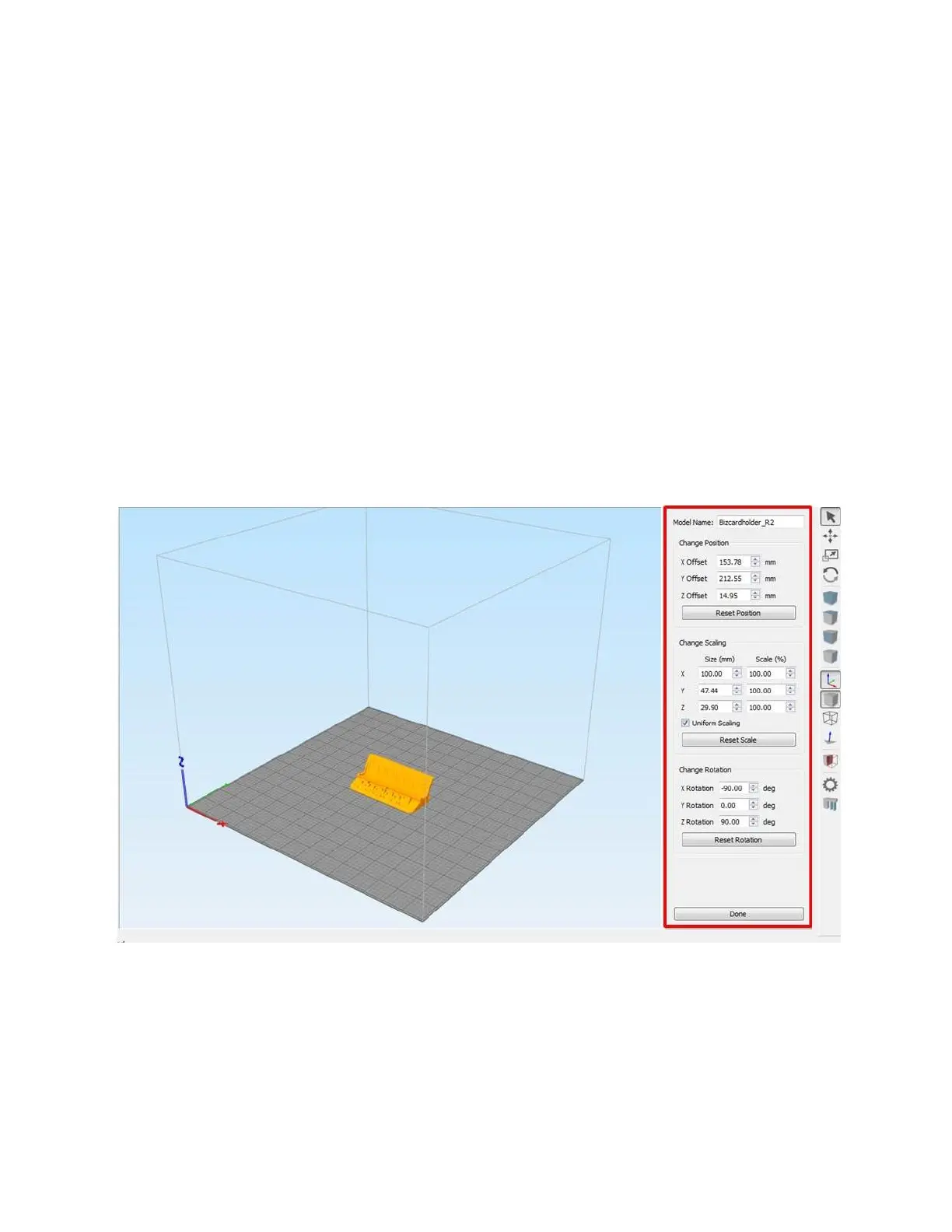
Double clicking on a model will open another menu on the right with options to reposition, scale, and rotate your
model.
The rotation options are especially useful to position your part in the best orientation for printing.
7.3 Processes & Profiles
Processes are how you tell Simplify how you want the part built. Things like material, layer height, infill amount,
speed, etc are all defined in the process.


 To Next Page