GPSMAP
®
400 Series Owner’s Manual 17
uSInG chartS
Heading Line—draws an extension from the bow of the boat in the
direction of travel.
•
Off—turn off the heading line.
•
Distance—sets the distance to the end of the heading line.
•
Time—sets the amount of time until you reach the end of the
heading line.
Chart Borders
—turn on chart borders if you load BlueChart g2
Vision maps and you want to see what areas the maps cover.
Tracks—hide (off) or show (on) tracks on the chart.
Appearance—customize how items are shown on the map.
Changing the Chart Appearance
From the Home screen, select Charts > Chart Setup >
Appearance.
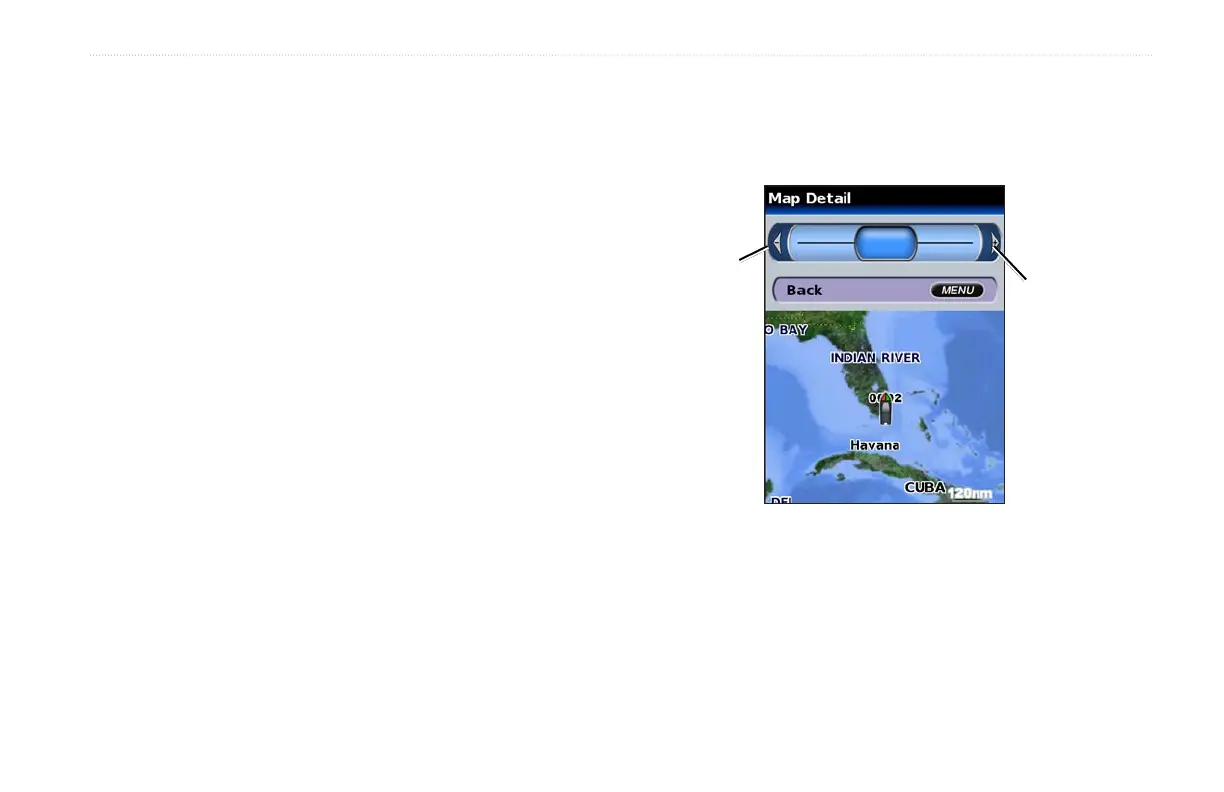
Detail—adjust the amount of detail shown on the map.
Press right on
the ROCKER to
increase map
detail.
Press left on
the ROCKER to
decrease map
detail.
Photos—set the high resolution satellite images to on, off, or land
only. (See page 14 for more information.)
Spot Depths—turn on spot soundings and set a dangerous depth.
Light Sectors—adjust the drawing of light sectors on the map.
Symbols—select the navaid symbol set (NOAA or IALA).
Symbol Size—adjust the size of the symbols shown on the map.



 To Next Page