Customizing Pages
Customizing the Startup Screen
You can personalize the image that is displayed when the chartplotter is turning on. For the best fit, the
image should be 50MB or less and conform to the recommended dimensions (Recommended Startup Image
Dimensions, page9).
1 Insert a memory card that contains the image you want to use.
2 Select > System > Sounds and Display > Startup Image > Select Image.
3 Select the memory card slot.
4 Select the image.
5 Select Set as Startup Image.
The new image is shown when turning on the chartplotter.
Recommended Startup Image Dimensions
For the best fit for the startup images, use an image that has the following dimensions, in pixels.
Display resolution Image width Image height
WVGA 680 200
WSVGA 880 270
WXGA 1080 350
FHD 1240 450
WUXGA 1700 650
4KUHD 2480 900
Creating a New Combination Page
You can create a custom combination page to suit your needs.
1 Select Combo > Add Combo.
2 Select a window.
3 Select a function for the window.
4 Repeat these steps for each window of the page.
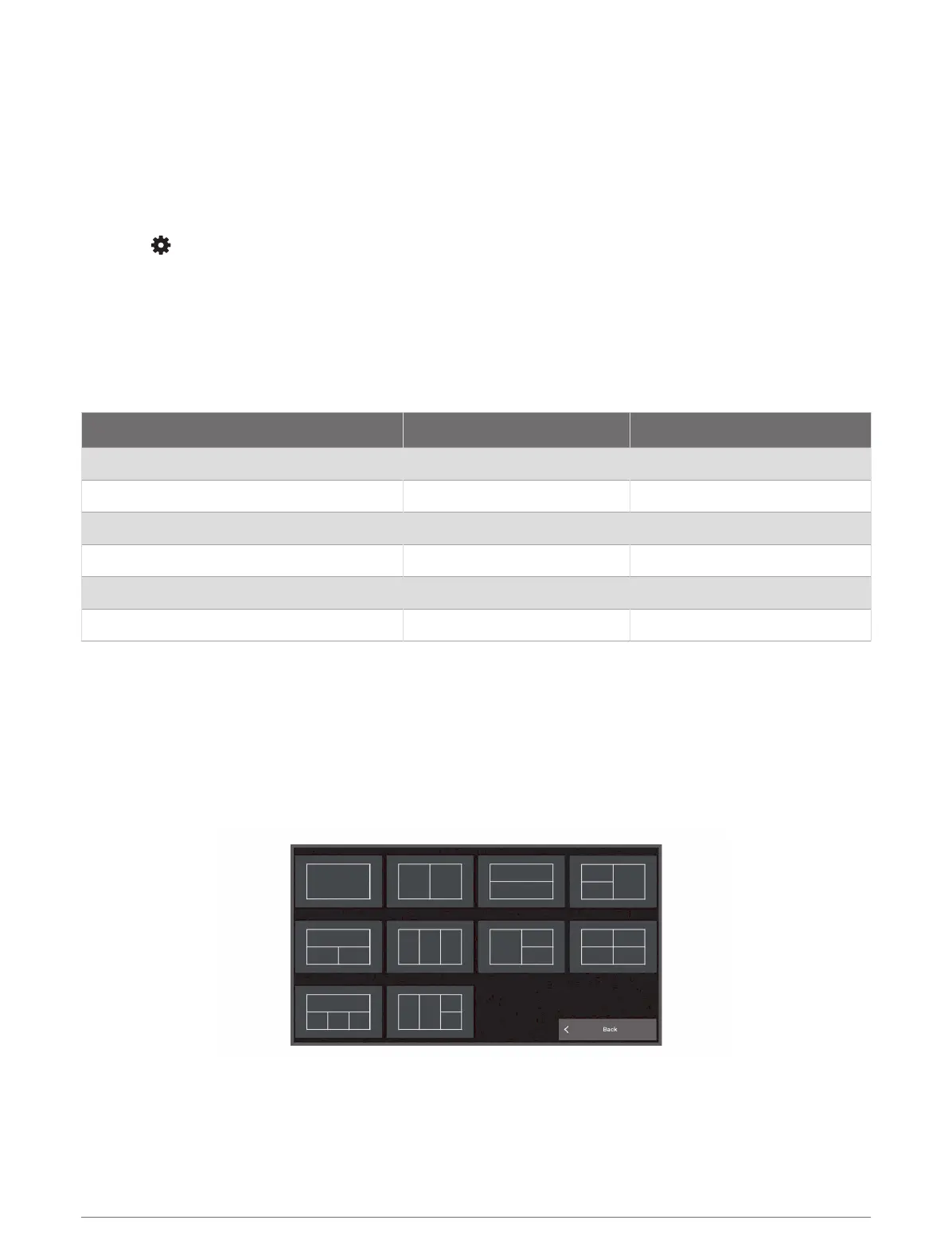
5 Select Layout, and select a layout.
6 Select Name, enter a name for the page, and select Done.
7 Select Overlays, and select which data to show.
8 Select Done when you have finished customizing the page.
Customizing the Chartplotter 9


 To Next Page